



TL;DR
- Recorded lectures are great in theory and exhausting in practice.
- You’ll set up one simple system that turns a 2-hour lecture into 10-minute review notes.
- The workflow: pull the transcript, summarize with AI, reshape into study notes, then reuse for quick revision.
- You can run this directly on YouTube using the IsThisClickbait browser extension.
You sit down to “quickly” review a recording before tomorrow’s quiz. Two hours later, you’ve watched most of it on 1.5× speed, your notes are messy, and you still aren’t sure what will be on the exam.
This guide walks through a practical, repeatable setup that lets you use an ai lecture summarizer for students to turn long recorded lectures into clean, 10-minute review notes without rewatching every second. The goal is not to outsource thinking to AI but to clear away busywork so your brain can focus on actually learning in a system that fits around real student life.
Why long lectures feel so draining
Long recorded lectures pile up fast, but they’re built for teaching, not for revision. They mix explanations, questions, jokes, and admin reminders, so you end up scrubbing through a two-hour video looking for “the bit about conditional probability” instead of quickly seeing the key concepts and worked examples.
What an AI lecture summarizer actually does for you
At a basic level, an AI lecture summarizer takes the transcript of your video and turns it into shorter, structured text — a starting point for a full set of review notes.
- Transcript → outline: Converts a wall of text into sections and subheadings.
- Outline → key points: Pulls out definitions, formulas, and “the professor kept repeating this” ideas.
- Key points → questions: Drafts quiz and exam questions you can test yourself on.
- Timestamps: Lets you jump back to the exact moment the lecturer explained something, right from your notes.
IsThisClickbait’s AI lecture summarizer made for students does exactly this for YouTube and other long-form videos. The browser extension sits next to the video, pulls the transcript, and gives you a structured summary, honesty score, and timestamps without leaving the page, so you can turn a public or unlisted YouTube lecture into a tight outline in a couple of clicks.
For general learning videos, you can check out our guide on using YouTube summaries for studying in our post on YouTube study notes.
The 5-step system: 2-hour lecture → 10-minute notes
“The goal isn’t to watch less. It’s to waste less time finding what matters.”
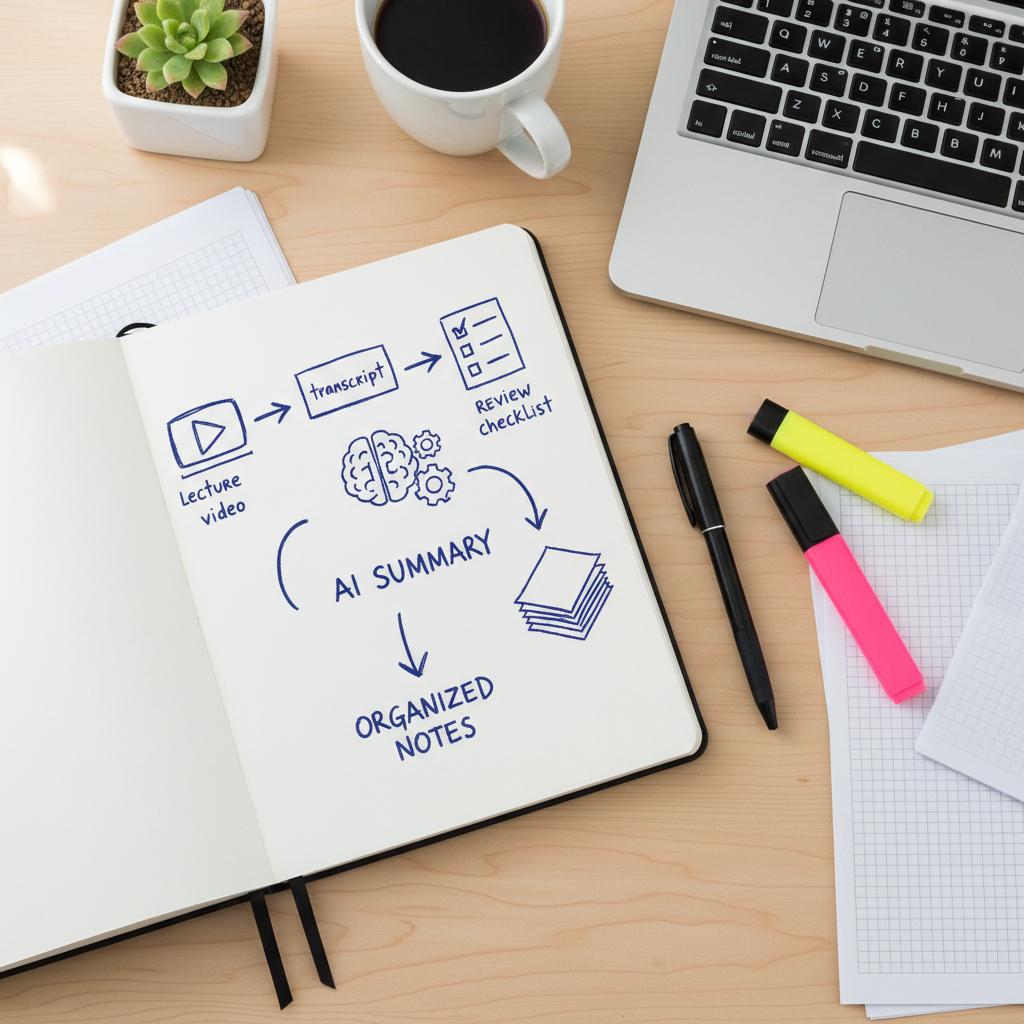
Conceptual flow: lecture → transcript → AI summary → structured notes → spaced review.
Step 1: Capture the lecture recording
First, you need a recording the AI tool can read. Many universities already upload lectures to YouTube (public, unlisted, or behind a link in your LMS). If your course uses another platform, check whether you can open the same lecture on YouTube or a similar player that exposes a transcript.
When in doubt, ask your professor or TA if there’s a YouTube version or a captioned upload available; they often already exist for accessibility reasons.
Step 2: Open the lecture in IsThisClickbait
Next, install the IsThisClickbait browser extension in your usual browser (Chrome, Edge, Brave, Opera, Arc, or Firefox). Start from the IsThisClickbait home page and follow the extension link for your browser.
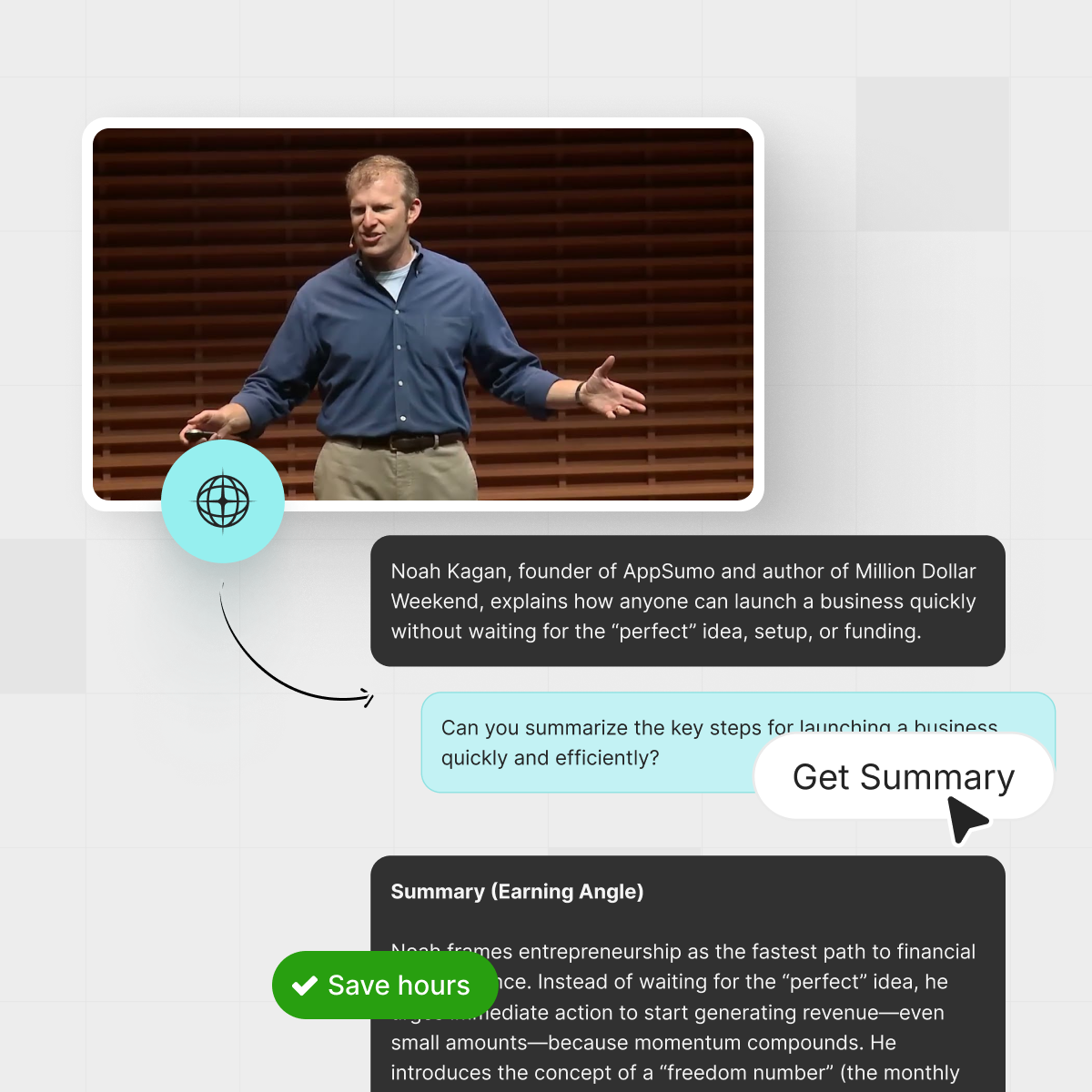
With the extension installed, open your lecture on YouTube and click the IsThisClickbait panel. The tool will:
- Pull the full transcript of the lecture.
- Generate a clean summary with headings and key points.
- Show timestamps so you can jump straight to important segments.

Illustrative view of a lecture video with an AI summary panel open alongside it. Think of this as your “raw” AI summary — a starting point, not your finished notes.
Step 3: Shape the AI output into real study notes
Now turn that raw summary into something your exam-day self can understand at a glance. Two proven options:
- Cornell notes style: Split the page into three areas: cues (questions/keywords), main notes, and a short summary at the bottom. The Cornell note-taking guide walks you through this method.
- Question–answer format: Turn each key point into a question (“What is Bayes’ Theorem?”) with a short, clear answer beneath it.
Copy the AI summary into your note app (Notion, Obsidian, OneNote, Google Docs, whatever you use) and quickly reformat:
- Use headings for each main topic the lecture covered.
- Turn bullet points into Q&A where it makes sense.
- Add formulas, diagrams, or screenshots from slides where the AI can’t capture the visuals.
This editing step is where you actually learn: instead of mindlessly copying, you ask, “How would I explain this to a friend?” and adjust the AI text.
Step 4: Layer on your own understanding
AI can’t know where you got lost. As you skim through the lecture or scrub to critical timestamps, add:
- “I’m confused about…” notes: Mark any step that feels shaky. These become questions for office hours or study groups.
- Personal examples: Tie abstract concepts to something in your life or major (“This is like revenue vs. profit from my internship”).
- Links to slides or textbook pages: A quick “see slide 12” or “see page 143” saves hunting later.
After 10–15 minutes, your notes no longer look like generic AI output; they look like a version of the lecture your future self will trust.
Step 5: Lock in a quick review routine
The magic isn’t in doing this once. It’s in making it part of your normal week. A simple rhythm:
- Same day: Run the summary, reshape the notes, and mark confusion points while the lecture is fresh.
- 2–3 days later: Spend 10 minutes answering your own questions and trying to recall key ideas before peeking.
- Week before the exam: Use your notes as a checklist and jump back to any tricky timestamps directly from the IsThisClickbait panel or your links.
This lines up with spaced repetition: a Cornell notes study guide from a university learning center reports that revisiting lecture material within 24–48 hours and several times a week, instead of cramming once, can dramatically increase long-term recall.
A real weekly workflow for busy students
Here’s one simple way this can fit into a normal week with three lecture-heavy courses.

A simple weekly setup for turning long lectures into short review sessions.
- Right after each lecture: Open the recording on YouTube, generate an AI summary with IsThisClickbait, and paste it into your notes.
- That evening: Spend 10–15 minutes per class reshaping those summaries into Cornell notes or Q&A cards.
- Sunday reset: Revisit each set of notes for 10 minutes, testing yourself on the questions you wrote.
Instead of rewatching three 90-minute lectures before a quiz, you spend about 15 minutes per class shaping AI summaries into notes plus short review sessions — roughly 60–90 minutes of focused review instead of 4–5 hours of scrubbing through videos.
You end up with a small library of tight, searchable notes to skim before any quiz.
For more ideas on building systems around video learning, see our post on AI video summary tool.
How this fits proven study methods (not replaces them)
Many students worry AI summaries will make them “lazy learners,” but they work best when combined with proven study methods.
- Cornell note-taking: Let AI draft the main notes so you can spend your effort writing cues and short summaries that force you to process the material.
- Active recall: Turn each key point into a question. Hide the answer, try to recall it from memory, then check instead of passively rewatching.
- Spaced repetition: Short, structured notes are easy to review several times or move into a flashcard app for automated spacing.
For deeper explanations of techniques like active recall and spaced repetition, see resources such as the Learning Scientists’ spaced practice guide. AI mainly saves time by turning messy transcripts into first drafts; you still do the learning.
Common questions about AI and lecture summaries
Is using an AI lecture summarizer cheating?
In most classes, using an AI lecture summarizer on materials you already have is like using a highlighter or note-taking app: you’re creating a study aid, not submitting the AI output as graded work. Academic-integrity rules vary, though, so check your course policies or your university’s AI guidance for students and never present AI-generated work as entirely your own if that isn’t allowed.
Will I miss important details if I rely on AI summaries?
Any summary, human or AI, leaves some details out. This workflow reduces that risk because you:
- Skim and edit the AI output instead of accepting it blindly.
- Use timestamps to replay tricky sections when something looks unclear.
- Add your own clarifications, examples, and questions so key ideas are captured.
Does this work for math, physics, or coding-heavy lectures?
Yes, with one extra step: visuals. AI handles spoken explanations and captions well but can’t always capture every formula or line of code. For technical subjects:
- Add screenshots of key derivations or code snippets into your notes.
- Link back to exact timestamps where the professor works through examples.
- Turn each worked example into a question you can try on a fresh problem set.
Can I use this system with non-YouTube lectures?
Often, yes. If your university uses YouTube under the hood (which many do), you’re set. For other platforms, you need a transcript or captions and a browser where IsThisClickbait runs. If transcripts aren’t available, ask your instructor or tech support whether an accessible, captioned version exists.
Try this in your next lecture
You don’t need to overhaul your whole semester. Start with one course: take the next recorded lecture and run it through the 5-step system once.
When you’re ready, install the IsThisClickbait extension from our home page, then explore more ways to turn YouTube into a study ally in our full blog archive.