


You open a “must‑watch” 70‑minute lecture on YouTube the night before a quiz. Ten minutes in, you’re already pausing every few seconds, rewinding, and wrestling with a messy notebook. By the time the video ends, your hand hurts, and your notes still feel half‑baked.
There’s a calmer way to study: let AI pull the transcript, turn it into structured notes, and highlight the parts that actually matter. Then you skim, spot gaps, and only rewatch the sections worth your time. This guide shows how to go from raw lecture video to a clear, exam‑ready study guide using IsThisClickbait and a few simple habits.
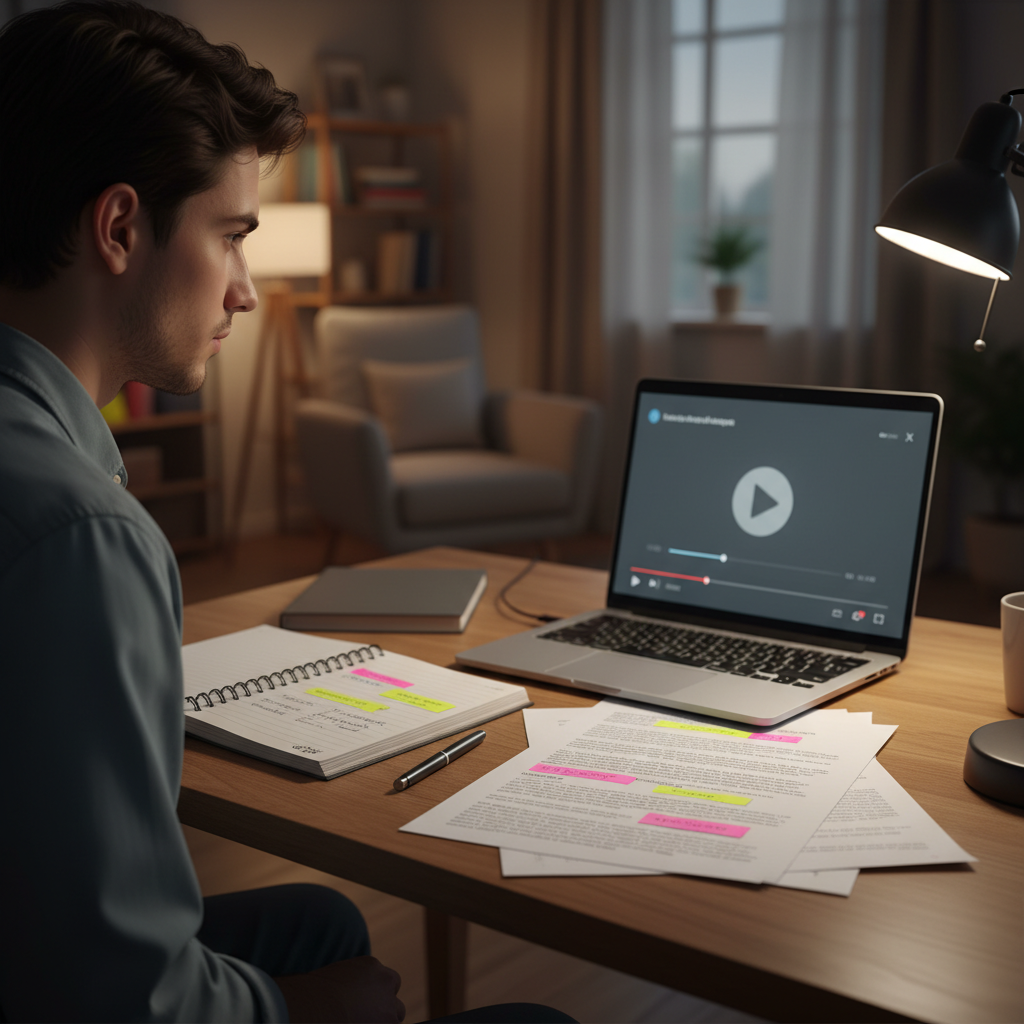
Let the video play while AI helps you turn it into structured, readable notes.
TL;DR: From YouTube lecture to study guide in 5 minutes
- Open the YouTube video and load it in the IsThisClickbait side panel or web app.
- Pull the transcript automatically (no copy‑paste from YouTube required).
- Generate a summary + outline with key points and timestamps.
- Ask follow‑up questions in the built‑in chat to clarify concepts.
- Export to your notes app (Notion, Obsidian, Google Docs) as a clean study guide.
Why turn lectures into AI notes instead of watching at 1.5×?
Fast playback and endless pausing feel productive, but your brain is doing double duty: decoding the lecturer and deciding what matters. When AI handles the first pass, you shift from being a transcription machine to being a reviewer and critic.
- Less burnout: skim the outline and only rewatch the tricky sections.
- Cleaner memory cues: bullet‑point summaries and timestamps are easier to review than a chaotic wall of text.
- Searchable knowledge: instead of thinking “it was somewhere around the middle,” you search your notes by keyword.
This approach works for university lectures, MOOC videos, conference talks, deep‑dive explainers, even hour‑long product breakdowns your team shares in Slack. Anywhere you rely on video, AI‑powered YouTube summaries help you keep the value and cut the fluff.
Step 1 – Get a reliable transcript from any YouTube lecture
Everything starts with a solid transcript. YouTube already offers captions and transcripts on many videos, but grabbing them by hand is tedious and easy to mess up.
Option A: Use YouTube’s built‑in transcript (manual)
On desktop, you can open the video, click the three dots under the player, and choose “Show transcript” when it’s available. You can copy chunks into a document, but formatting and timestamps often come through in a messy way. The official YouTube Help Center docs explain how transcripts and captions work in more detail.
Option B: Use IsThisClickbait to pull the transcript instantly
With the IsThisClickbait browser extension, you open the YouTube video and pop up the side panel. The tool:
- Fetches the full transcript where possible.
- Cleans out most of the noise (um’s, timestamps, repeated intros).
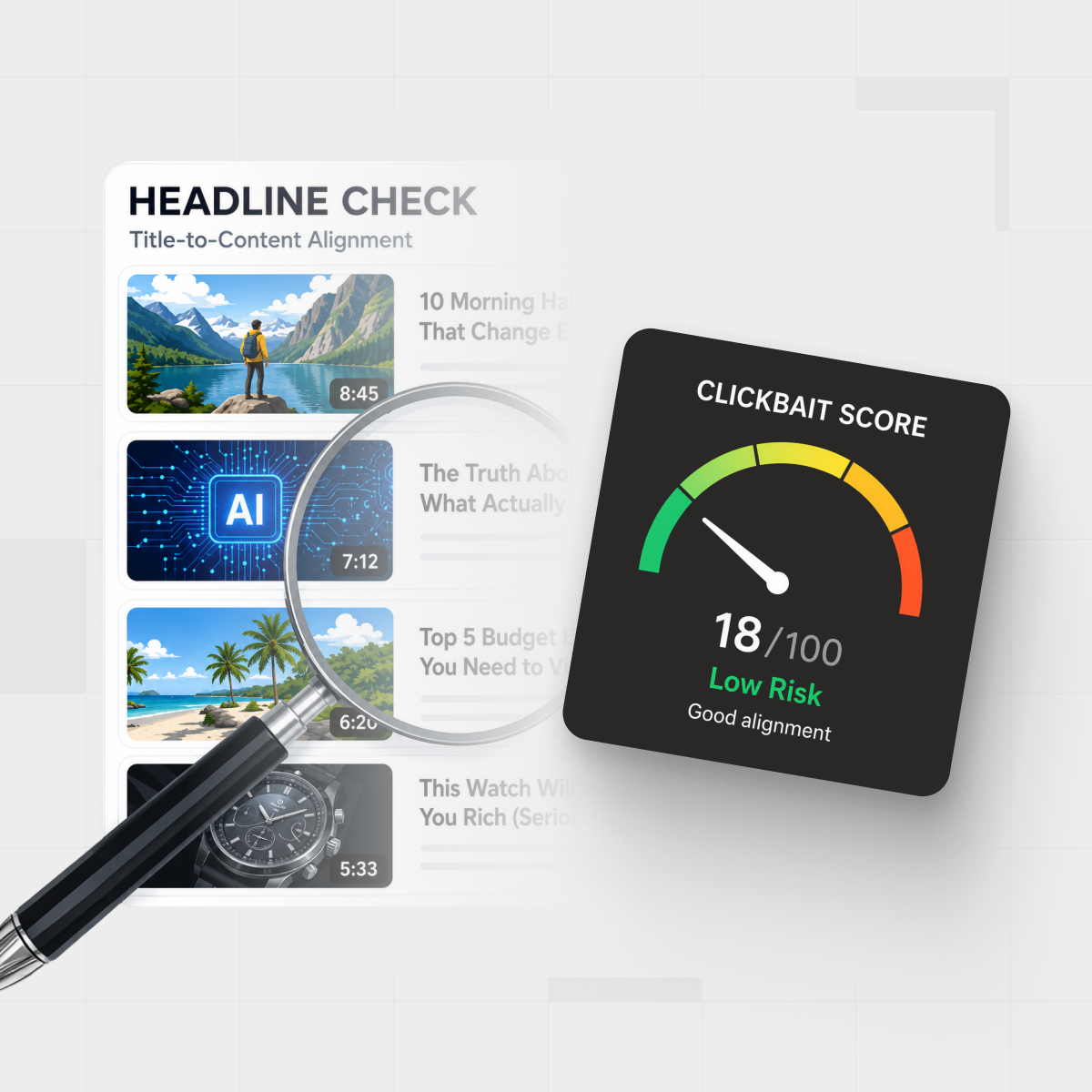
- Shows a concise summary, clickbait score, and key sections at a glance.
No extra tabs, no copy‑paste. You start from a readable transcript instead of raw auto‑captions, which makes the next step, structuring notes, much smoother.
Step 2 – Turn the transcript into structured notes with AI
Once IsThisClickbait has pulled the transcript, the AI models behind it (including Claude, OpenAI, and Gemini) can reshape that wall of text into something you’d actually revise from.
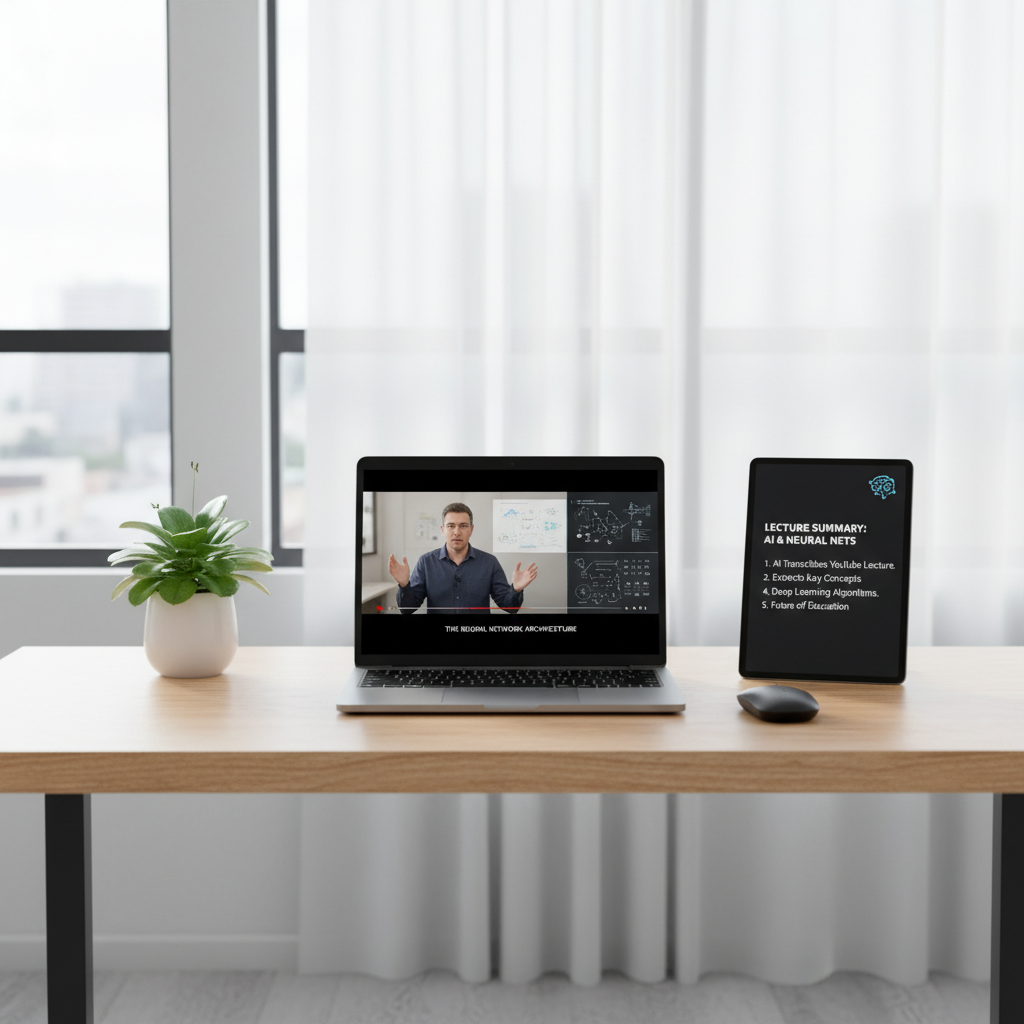
AI can turn a raw lecture transcript into clean, skimmable notes in seconds.
IsThisClickbait is built for this exact use case: it has already turned thousands of long‑form YouTube videos into quick, skimmable summaries for students, self‑learners, and teams.
Use summaries for quick orientation
Start by generating a high‑level summary. You’ll see:
- The main topic and subtopics the lecturer covers.
- Key arguments, definitions, and terms.
- Timestamps for must‑watch segments.
At this point, you can already decide: “Worth a full watch,” “Good enough to skim,” or “Skip entirely.” That alone saves hours over a typical semester.
Prompts that turn transcripts into clean lecture notes
To move from summary to study guide, use prompts that ask for structure, not just shorter text. For example:
- Outline prompt: “Turn this lecture transcript into a structured outline with H2/H3‑style headings, bullet points, and short explanations for each concept.”
- Definitions prompt: “List every important term and give a one‑sentence definition plus the timestamp where it’s explained.”
- Exam prep prompt: “Create potential exam questions based on this lecture and give short, model answers.”
Inside IsThisClickbait, you can ask these questions directly in the chat about the video, without juggling separate AI tabs or losing track of context.
Make notes that match proven study methods
Classic systems like the Cornell note‑taking method split the page into cues, notes, and summaries. You can adapt your prompts to mirror that:
- Ask for a “cue” column: key questions or prompts.
- Ask for a “notes” column: concise bullet‑point answers.
- Ask for a short summary at the end of each section.
The result feels familiar if you already use Cornell notes, but you didn’t spend an hour typing everything by hand.
Step 3 – Export to Notion, Obsidian, or Google Docs
AI notes are only helpful if they live where you actually study. Once you’re happy with the outline and key points, move them into your main knowledge base.
Keep timestamps linked to the original video
When IsThisClickbait provides timestamps, keep them in your exported notes. In Notion or Google Docs, you can even paste timestamped links so one click jumps straight to that moment in the lecture. Future‑you will be grateful during revision week.
Standardize a simple template
To make the workflow repeatable, create a template in your notes app, for example:
- Title: Course – Lecture name – Date
- Link: YouTube URL + IsThisClickbait analysis link
- Key ideas: 5–10 bullets
- Definitions & formulas: bullets or a small table
- Questions to review: AI‑generated or your own
- Action items: readings to follow up, problems to practice
After a couple of lectures, this becomes muscle memory. Open video → run analysis in IsThisClickbait → drop structured notes into your template.
From messy video to exam‑ready study guide (real‑world use cases)
Students dealing with marathon lecture playlists
Semester‑long playlists can run to dozens of hours. Instead of passively working through them, you can:
Combine AI‑generated lecture notes into a single course review that your study group can share.
- Scan each lecture’s AI summary to see where the new ideas are.
- Mark the top 2–3 “must‑watch” segments per video.
- Combine all AI‑generated outlines into a single course review document.
Many students use this with weekly review sessions, turning a pile of recordings into a tight set of notes before exams. Paired with spaced‑repetition tools or flashcards, that review document becomes a powerful study companion.
Self‑learners and professionals studying from YouTube
Maybe you’re not in school but you learn from conference talks, industry breakdowns, or technical tutorials. With the same workflow you can:
- Create a “course” out of playlists and keep one living document of key takeaways.
- Summarize long product or competitor videos and share highlights with your team.
- Use clickbait scores to decide which videos are worth your limited time.
Instead of vaguely remembering “that one talk about pricing,” you search your notes and land on a timestamp, plus a three‑line summary.
Weekly study workflow example (12‑lecture playlist)
Mini‑scenario: you have a 12‑lecture YouTube playlist, each around an hour long, and an exam in one week. Watching all 12 at normal speed just isn’t realistic.
With this YouTube‑to‑Study Guide Workflow, you could batch the playlist like this:
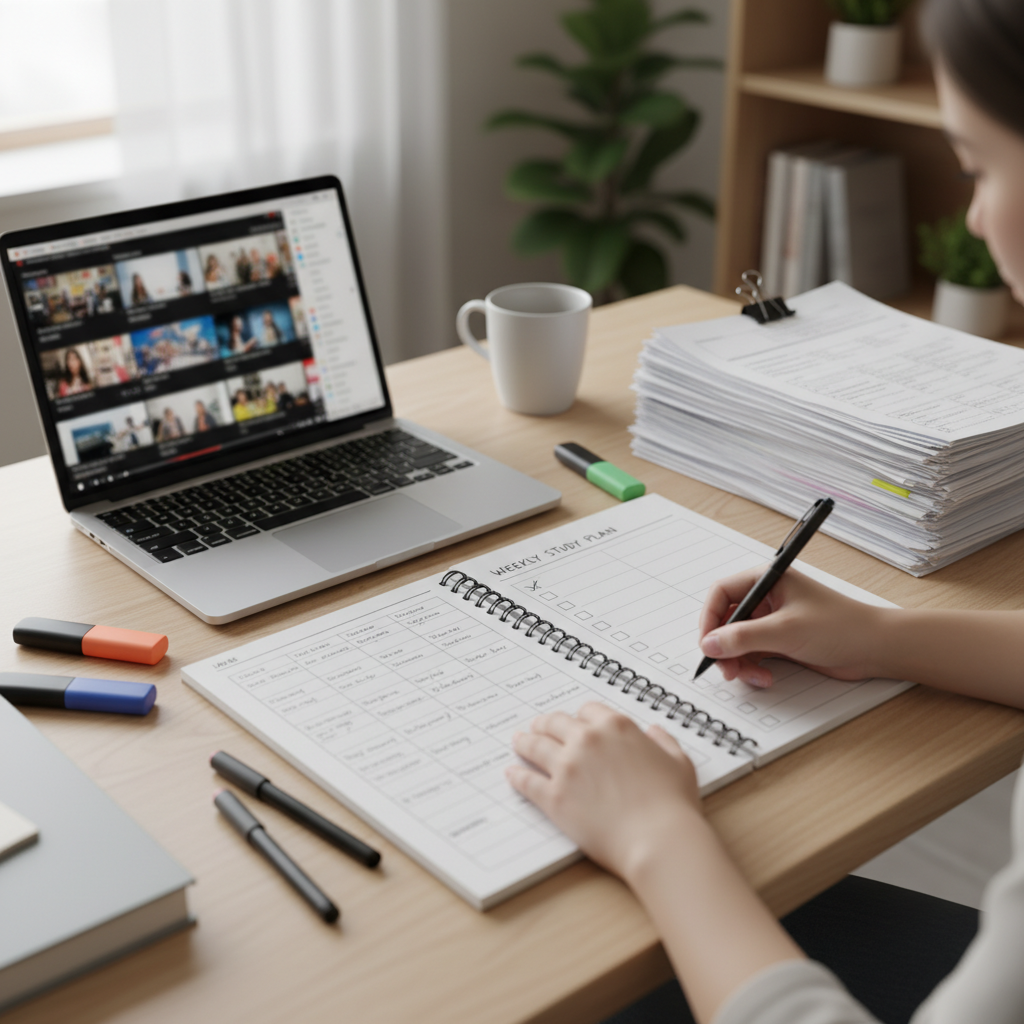
Plan your week around the most important lectures and AI‑generated notes, not endless playback.
- Day 1–2: Run all 12 lectures through IsThisClickbait, skim the AI summaries, and tag the 4–6 most important videos or segments.
- Day 3–4: For those priority lectures, generate structured notes and export them into your template in Notion or Obsidian.
- Day 5–6: Rewatch only the trickiest timestamped sections while editing and clarifying the notes.
- Day 7: Use your consolidated notes as a single study guide, turning key points into practice questions or flashcards.
Instead of trying to cram 12 full hours of video, you spend the week reviewing a focused set of notes and targeted clips, while still keeping a clear record of what each lecture covered.
Best practices for AI lecture notes to stay accurate
AI is a fast first‑pass note‑taker, not a replacement for your judgment. A few small habits keep you on the right side of that line.
Skim, then spot‑check
- Read the outline and key points first.
- Jump to 2–3 timestamps and compare the AI summary with what’s actually said.
- Correct any misinterpretations in your exported notes.
This takes a few minutes but protects you from quietly studying distorted explanations all term.
Flag diagrams, code, and on‑screen text
Some lectures hinge on what’s on the slide or in the code editor. AI can’t always “see” that context from audio alone. When you notice references like “as you can see here,” add a quick manual note:
- Screenshot or copy key formulas and paste them under the right heading.
- Paste code snippets alongside the AI explanation.
- Add short comments like “diagram shows a U‑shaped curve between X and Y.”
You still save most of the typing, but your notes stay faithful to the material.
Keep the source one click away
Every study guide generated from a video should link back to its IsThisClickbait analysis and the original YouTube URL. That way, you can always re‑check context, rerun the summary, or ask new questions about the lecture when revision season rolls around.
Use AI notes to power active recall
Reading AI‑generated notes on repeat is still a fairly passive way to study. Learning research shows that testing yourself on the material, what psychologists call retrieval practice or the testing effect, leads to much stronger long‑term memory than re‑reading alone.
In one well‑known study of note‑taking, students who took notes by hand performed better on conceptual exam questions than peers who typed their notes verbatim on laptops, even though the laptop notes captured more words.
The researchers argue that having to process and rephrase ideas forces deeper thinking, which improves learning. You can get a similar benefit by actively working with your AI notes instead of just skimming them, and you can read a short summary of that research here: “Take notes by hand for better long‑term comprehension.”
Practical ways to turn AI notes into active recall:
- Turn each heading into a question (for example, “What are the three steps of X?”) and cover the answers while you quiz yourself.
- Ask IsThisClickbait or your favorite AI tool to generate practice questions from the notes, then try answering them without looking.
- Copy key questions and answers into a flashcard app so you can review them with spaced repetition.
The goal is to let AI give you a solid first draft of the material, then spend your time testing and explaining it, not just re‑reading it.
FAQs: turning YouTube videos into notes with AI
How do I turn a YouTube video into notes automatically?
Install the IsThisClickbait extension, open the video, and open the side panel. The tool pulls the transcript, generates a summary and outline, and lets you export those notes into your favorite app. No manual copying from YouTube’s transcript window.
Does this work for private or unlisted course videos?
If you can open the video in your browser and it provides captions or a transcript, IsThisClickbait can usually analyze it. Some restricted or DRM‑protected course videos may be limited, and fully offline recordings would first need to be uploaded to a platform that supports transcripts.
Can I trust AI‑generated notes for exams?
Treat AI notes as a strong draft, not the final truth. Use them to save time on transcription and structure, then review and correct them while you study. Combining AI drafts with your own checks tends to work far better than either alone.
Will this replace my own note‑taking?
Not really—and that’s good. The goal is to offload the mechanical part (typing everything the lecturer says) so you can focus on understanding, questioning, and connecting ideas. Many learners keep both: AI‑generated outlines plus a few lines of their own reflections.
Turn your next lecture into a study guide in minutes
The next time you face a long lecture playlist, try this instead of grinding through every minute in real time. Let AI handle the first pass, keep only the useful parts, and build a tidy set of notes you’ll actually revisit.
Open a video, run it through IsThisClickbait, and see how it feels to study from a clean outline instead of a chaotic notebook. Your future self, staring at a packed exam calendar, will thank you.