


A good YouTube transcript generator turns long videos into searchable, skimmable text.
If you’ve ever scrubbed through a 45‑minute “quick tutorial” just to find one sentence, you know the quiet rage that long YouTube videos can trigger. A good YouTube transcript generator turns that slog into a quick scan, so you can search, skim, and quote without sitting through every second.
That said, not all tools are equal. Some mangle names and jargon, some lag behind the video, and some hide the best features behind confusing pricing. In this guide, we’ll look at how different YouTube video transcript generator options stack up on accuracy, speed, and price — and where free tools are enough versus when a paid setup actually saves you more time.
TL;DR
- Built‑in YouTube transcripts are a solid baseline, but they struggle with heavy accents, crosstalk, and domain‑specific jargon.
- Browser‑based tools are usually fastest for everyday use and copying text into notes or docs.
- Dedicated web apps tend to offer higher accuracy, better formatting, and exports (SRT/VTT) but cost more.
- A “YouTube transcript generator free” plan is fine for light users; heavy note‑takers outgrow limits quickly.
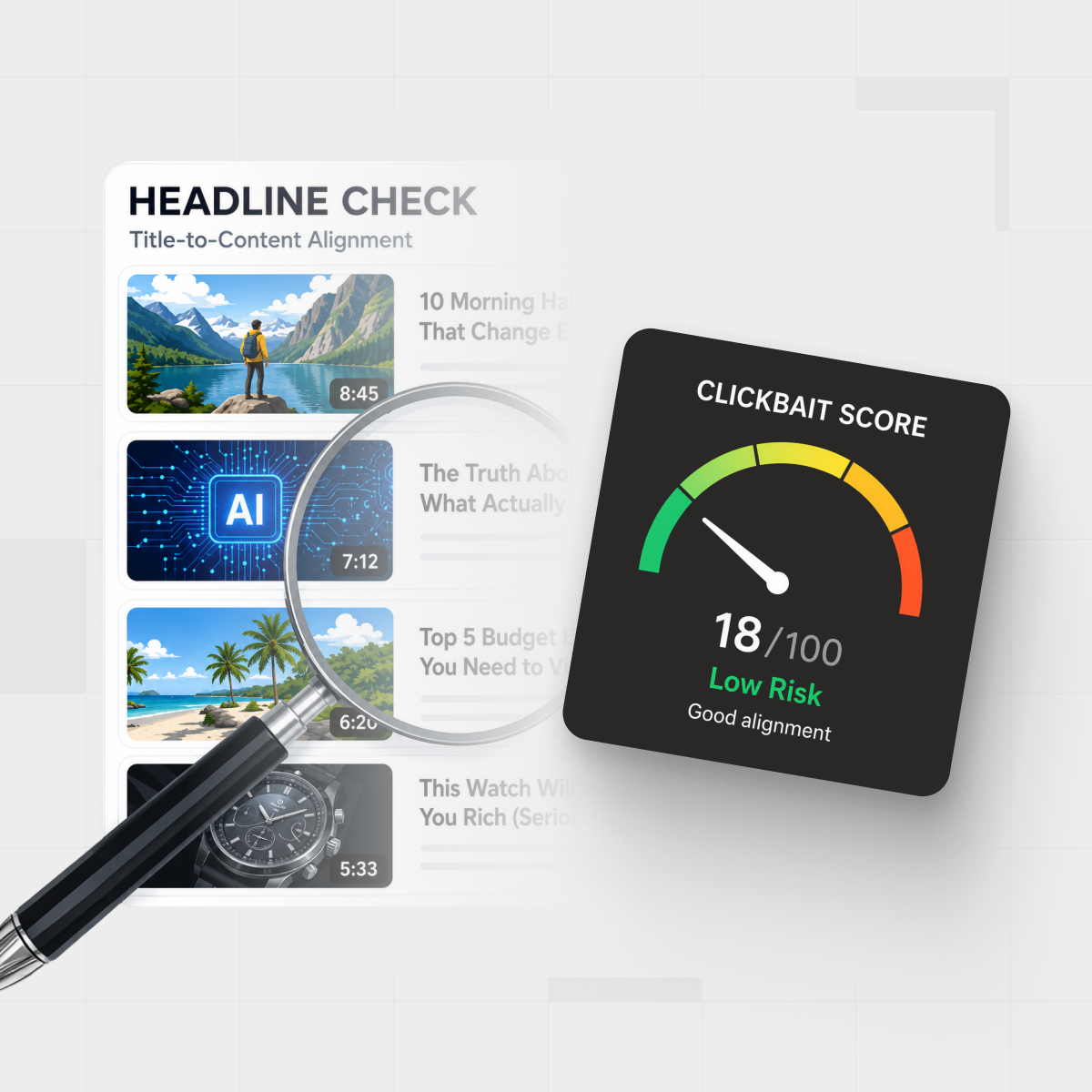
- Transcripts alone don’t tell you if a video is clickbait; tools like IsThisClickbait turn transcripts into summaries, scores, and key moments.
What a YouTube transcript generator actually does
At the simplest level, a transcript tool listens to the audio in a YouTube video and converts it into text using automatic speech recognition (ASR). Better tools then:
- Add punctuation and casing so the text reads like natural language.
- Attach timestamps so you can jump straight to specific sentences.
- Handle multiple speakers or at least mark speaker changes.
- Let you export into formats like TXT, DOCX, SRT, or VTT.
If you watch lectures, deep‑dive explainers, or long podcasts, that transcript becomes your cheat code. You can hit Ctrl+F for a phrase, copy quotes accurately, or turn the text into notes with IsThisClickbait video summaries.
Transcripts vs subtitles vs captions
People often mix these up:
- Transcript: Full text of what’s spoken in the video, usually in paragraph form.
- Subtitles/captions: Text timed to the video, usually shown in chunks on screen.
- Closed captions: Subtitles that can also include sounds (“[music]”, “[laughter]”).
A good YouTube transcript generator can usually give you both: a clean transcript for reading and a caption file for subtitles if you need it.
How we tested different YouTube transcript tools
To compare tools in a way that feels like real life, think about three very common video types:
- A 12‑minute software tutorial with on‑screen menus and a single clear speaker.
- A 45‑minute university lecture with dense jargon and slide call‑outs.
- A 25‑minute podcast episode with two hosts talking over each other occasionally.

We looked at how different transcript tools handle tutorials, lectures, and podcasts.
These scenarios cover what usually trips tools up: fast talkers, technical terms, and overlapping voices.
What matters: accuracy, speed, and price
When people say “best YouTube transcript tool,” they usually mean some mix of:
- Accuracy: Does it get technical terms, names, and numbers right? How many edits do you have to make?
- Speed: Does it generate a transcript faster than real‑time, or are you waiting forever?
- Price: Is it per minute, per video, or subscription? Are there meaningful free tiers?
The “best” tool isn’t the one with the fanciest AI model; it’s the one that cuts the most minutes out of your week.
YouTube transcript options at a glance
Before choosing a specific product, it helps to understand the three main categories of tools.
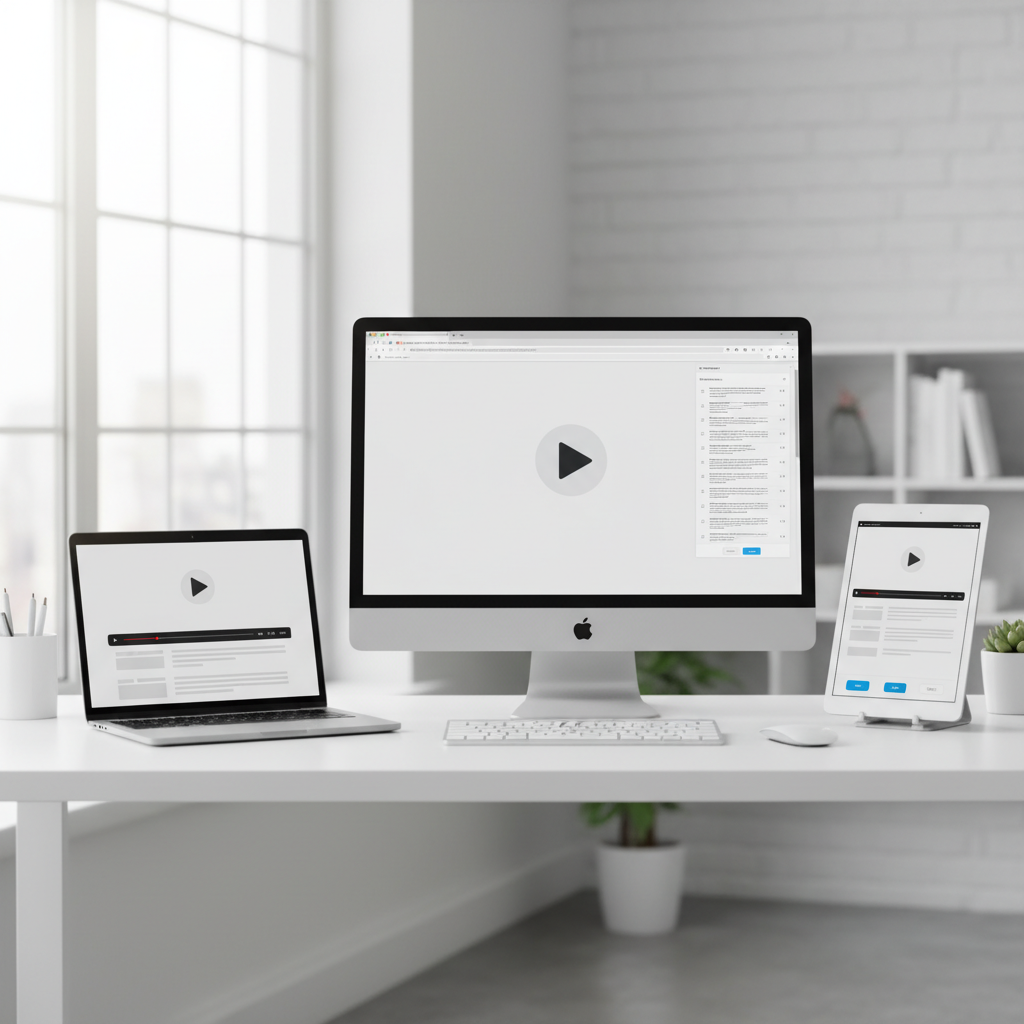
Built‑in transcripts, browser tools, and standalone web apps each have different trade‑offs.
1. Built‑in YouTube transcripts
YouTube itself offers auto‑generated captions and, on many videos, a transcript you can open from the video menu. For a lot of viewers, this is the first “free YouTube transcript generator” they ever touch.
- Pros: Free, no extra installs, good enough for many clear, single‑speaker videos.
- Cons: Limited formatting, errors with accents/jargon, no advanced export options.
You can learn more in the official YouTube Help Center, but the short version: built‑in is fine for casual use, less so for serious note‑taking.
2. Browser‑based YouTube transcript tools
These live in your browser (often as extensions) and sit next to the YouTube player. Many students and professionals like them because they fit right into their routine.
- Pros: One‑click transcripts, easy copy/paste, often include search and timestamps.
- Cons: Quality varies widely, some tools inject clutter, and privacy policies need a close read.
If you already use a browser extension like IsThisClickbait’s AI YouTube video analyzer, you know how handy it is to keep everything in one tab.
3. Standalone web‑app generators
These are full web apps where you paste a video URL and get back a transcript, often with extras like multi‑language support or batch processing.
- Pros: Stronger formatting, better exports, sometimes higher accuracy and language support.
- Cons: Extra steps (copying URLs), and serious features usually sit behind paid plans.
Quick comparison by tool type
Results: strengths and weaknesses by tool type
Instead of trying to crown one winner, it’s more honest to look at trade‑offs.
Accuracy patterns
- Clear tutorials: Most tools perform well; built‑in captions plus basic browser tools are usually fine.
- Lectures with jargon: Dedicated apps and modern AI‑powered tools tend to handle terminology better.
- Podcasts and crosstalk: Overlapping voices still cause issues; expect more manual cleanup.
No tool gets everything perfect. The real test is: how long do you spend fixing the transcript? If you’re constantly correcting names and numbers, the “cheap” option costs you in time.
Speed and convenience
For short videos, most tools feel instant. Differences show up when you’re working through full playlists or hour‑long webinars:
- Browser tools often transcribe as you watch, so you can skim while the video plays.
- Standalone apps may take longer, but let you queue multiple links while you work on something else.
- Some tools offer background processing so you don’t have to keep the tab open.
If you juggle a lot of content, shaving off a few clicks per video matters more than shaving off a few seconds of pure processing time.
Pricing, free tiers, and limits
Most services follow one of three pricing models:
- Time‑based: You pay per minute or per hour of audio processed.
- Usage tiers: Free up to X minutes per month; paid plans unlock more.
- Flat subscription: Unlimited or “fair use” caps for power users and teams.
A YouTube transcript generator free tier is perfect if you only need a few videos per week. If you’re a student batch‑processing lectures or a researcher clipping from webinars, you’ll likely hit the ceiling fast and want something like a clear, usage‑based paid plan.
Free YouTube transcript generator options (and trade‑offs)
Is there a truly free YouTube transcript generator?
In practice, “free” usually comes with at least one of these strings attached:
- Lower accuracy or older speech models.
- Limits on video length or monthly minutes.
- Fewer export formats, no batch processing.
- Ads, watermarks, or feature locks.
Built‑in YouTube transcripts plus a lightweight browser add‑on can take you surprisingly far if you mainly need quick quotes and basic search.
When does it make sense to pay?
Paying starts to make sense when:
- You’re spending more time fixing transcripts than reading them.
- You share notes across a team and need consistent formatting.
- You rely on transcripts for billable work (consulting, research, content production).
- You care about privacy and want clear data‑handling commitments.
If you’re on the fence, track one week of your YouTube‑related work; that number often justifies a modest subscription faster than you expect.
How to choose the right YouTube transcript tool for your workflow
A simple way to evaluate tools is to use the “FAST” checklist:
- Findable: Can you search the transcript instantly by keyword?
- Accurate: Does it handle your specific niche (coding, medicine, finance, etc.)?
- Searchable across videos: Can you look across multiple transcripts when you’re deep in research?
- Transferable: Is it easy to move notes into your docs, wiki, or task manager?
Quick decision checklist
Ask yourself:
- Do I mainly need a one‑off YouTube video transcript generator, or a daily workhorse?
- Will I read transcripts inside YouTube, or in a separate workspace?
- Do I care more about free access or shaving hours off my week?
- How sensitive is the content? Do I need strict privacy and data retention policies?
Heavy YouTube learners, especially students and professionals, often pair a transcript tool with a summarizer. For example, you might grab the transcript, then throw it into IsThisClickbait to get key points, timestamps, and a clickbait score.
Why transcripts alone aren’t enough for serious research
Transcripts solve the “what did they say?” problem. They don’t solve “is this actually worth my time?”

For serious research, a YouTube transcript generator is just the starting point.
If you use YouTube to learn — exam prep, product research, market analysis — you also care about:
- Whether the title and thumbnail match the substance.
- Which arguments, risks, or techniques the speaker really covers.
- Where the must‑watch moments and weak sections are.
That’s where tools like IsThisClickbait help. Under the hood, it reads the same transcript you’d get from a generator, then:
- Summarizes the core ideas in plain language.
- Flags when the video feels like clickbait and explains why.
- Highlights key timestamps, quotes, and must‑watch segments.
Instead of wrestling with a 20‑page transcript, you get a concise brief sitting right next to the video in your browser. If that sounds like your workflow, you can start from the IsThisClickbait homepage and try it alongside your current transcript setup.
FAQs about YouTube transcript generators
Is there a YouTube transcript generator free with no limits?
Truly unlimited free tools are rare. You’ll usually run into length caps, monthly quotas, or reduced features. The most sustainable approach is to pair YouTube’s own transcript feature with a free‑tier browser tool, then upgrade once you know you rely on transcripts regularly.
Can I generate a transcript from a private or unlisted YouTube video?
Many tools can only access what your browser can play. If you have permission to view a private or unlisted video while logged in, a browser‑based tool running in that session can often transcribe it. For strict privacy needs, check each tool’s documentation and privacy policy carefully rather than guessing.
Do transcript generators support multiple languages?
Modern ASR models support dozens of languages (supported languages list), but quality varies a lot. If you watch content in multiple languages, test your shortlist of tools on real videos in each language before committing. Some services list supported languages and quality tiers on their sites; others only mention a short set of “best” languages.
Is faster always better?
Not necessarily. For a 5‑minute clip, every tool feels fast. For a 3‑hour lecture series, batch processing and reliability matter more than shaving a few seconds. A slightly slower, more accurate service often wins overall.
Is reading a transcript actually faster than watching?
For most people, yes. Average reading speeds tend to exceed typical speaking speeds, especially once you’re skimming headings and key phrases. If you’re curious about the numbers, the words‑per‑minute article on Wikipedia gives a good overview.
Key Takeaways
- Use built‑in YouTube transcripts and a simple browser tool if you’re just starting out.
- Upgrade to a dedicated YouTube video transcript generator when accuracy and exports start to matter.
- Treat “free forever” promises with healthy skepticism; expect limits or trade‑offs.
Transcripts tell you what was said; tools like IsThisClickbait help you judge whether a video is worth your attention in the first place.