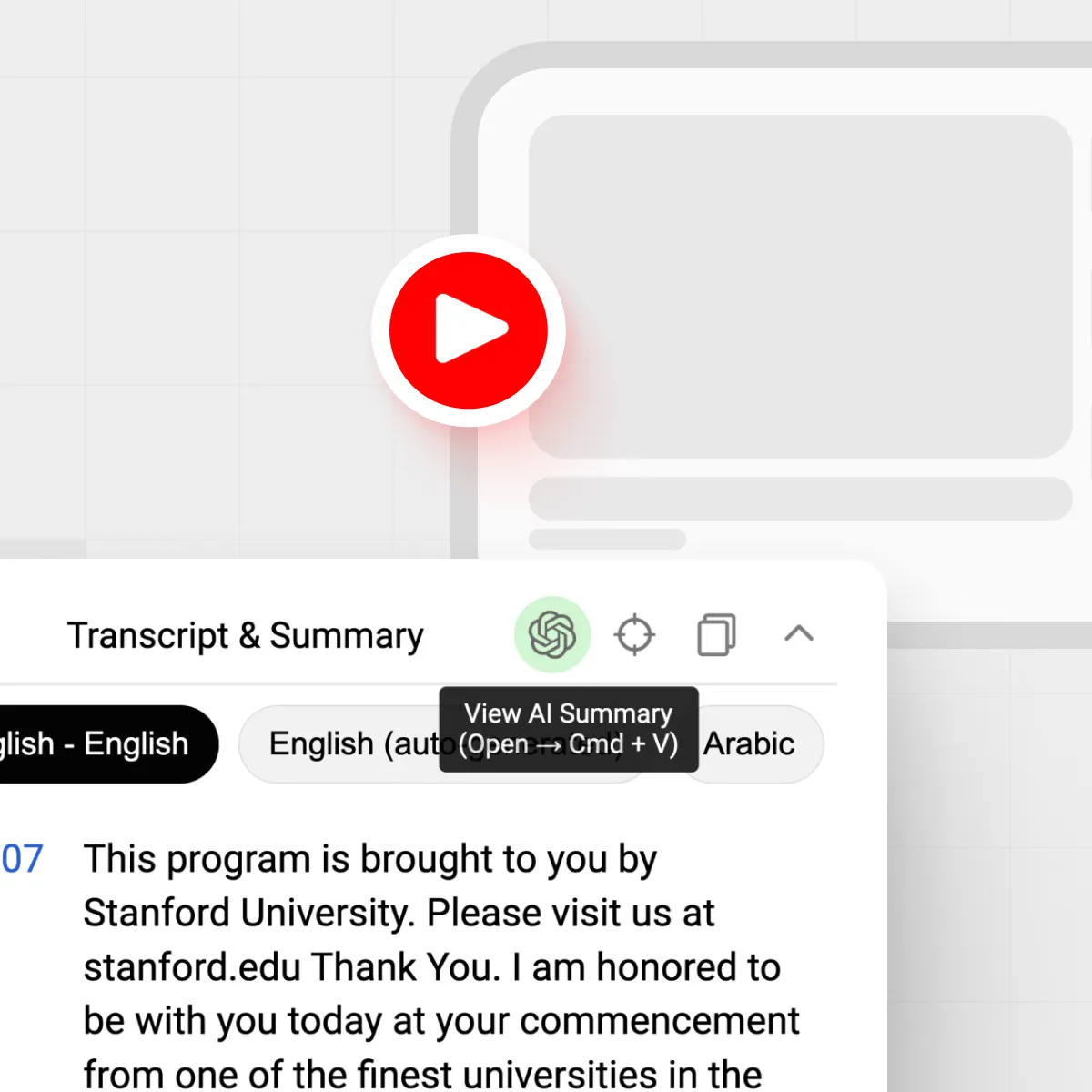




A YouTube summary extension lets you skim AI-generated takeaways beside the video instead of watching the full runtime.
TL;DR
- Use a summary extension to turn hour-long videos into skimmable text and key points.
- Set up custom prompts so ChatGPT focuses on the exact questions you care about.
- Pair generic summaries with IsThisClickbait to catch clickbait titles and surface must-watch moments with timestamps.
- End result: you can decide in minutes whether to watch, skim, or skip any video.
You open YouTube for “just one video” and end up 40 minutes deep into a rambling breakdown that never quite answers your question. Multiply that by a week of research, and your brain feels fried.
Summary extensions promise a better deal: pull the transcript, send it to ChatGPT, and hand you a neat overview so you can decide whether that hour-long video deserves your attention. In this guide, we’ll walk through how the YouTube Summary with ChatGPT Chrome extension works, how to install it, set up sharper prompts, and how tools like IsThisClickbait can give you faster, more honest insights about what’s really inside a video.
What is the YouTube Summary with ChatGPT Chrome extension?
The “YouTube Summary with ChatGPT” Chrome extension is a small browser add-on that sits next to the YouTube player. When you click it, the extension grabs the video’s transcript, sends it to ChatGPT, and shows you a generated summary or answer based on a prompt.
How it works in your browser
- You install the extension from the Chrome Web Store.
- On YouTube, a button or side panel appears near the video player.
- The extension fetches the transcript (the same text YouTube exposes under “Show transcript”).
- That text is sent to ChatGPT with a default or custom prompt you provide.
- You read the summary, key points, or answers inside a side panel instead of watching the full runtime.
Think of it as a quick-reading layer on top of YouTube. It shortens the distance between “this thumbnail looks promising” and “is there real value here?”
If you want a transcript-first workflow with extra context like clickbait scores, title–content mismatch checks, and must-watch timestamps, you can run videos through IsThisClickbait’s AI YouTube analyzer alongside or instead of generic summary extensions.
How to install the YouTube Summary with ChatGPT Chrome extension
Installation takes less than a minute if you already use Chrome or a Chromium-based browser like Edge, Brave, or Arc.
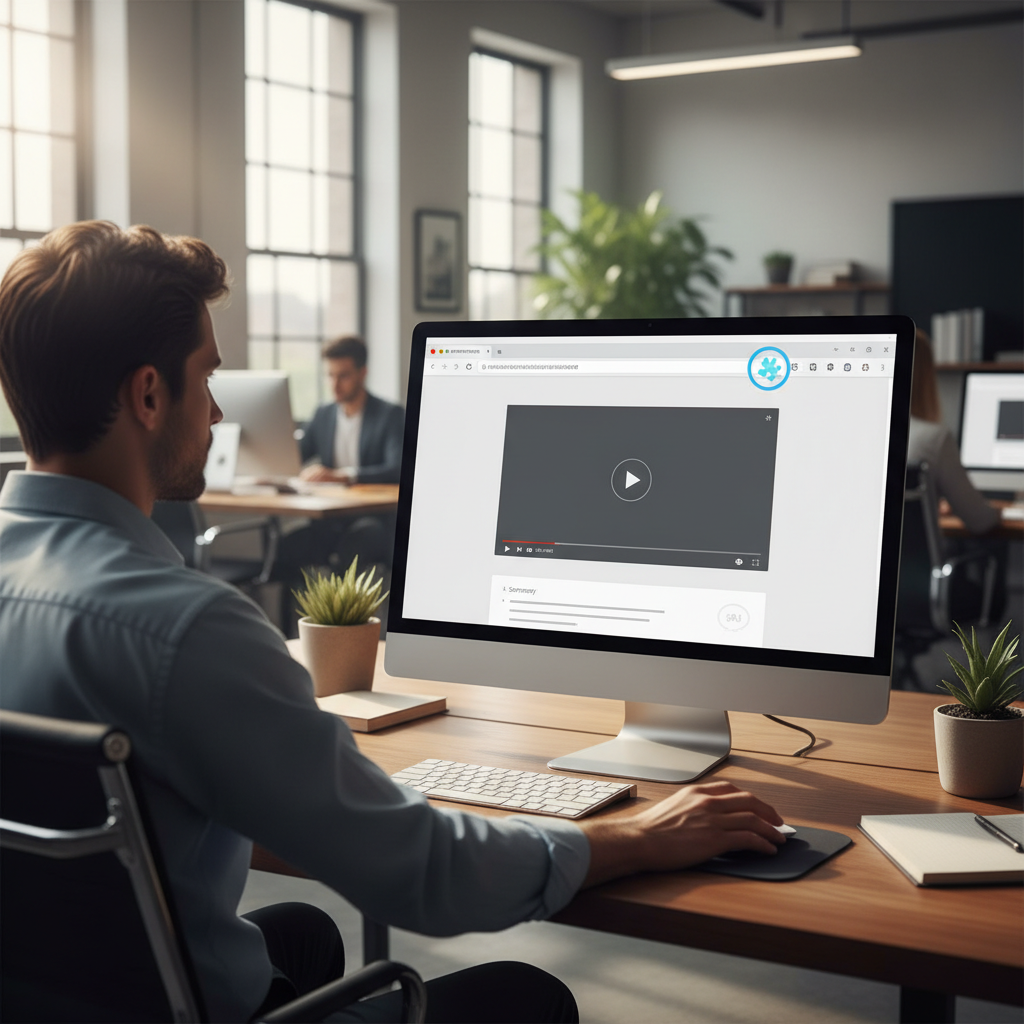
Once installed from the Chrome Web Store, you can pin the YouTube summary extension in your browser toolbar for one-click access.
Step-by-step install on Chrome
- Open Chrome and go to the Chrome Web Store.
- Search for “YouTube Summary with ChatGPT”.
- Open the extension page and check:
- Publisher name
- Number of users and reviews
- Requested permissions
- Click Add to Chrome, then confirm with Add extension.
- Wait for the confirmation pop-up that the extension was installed.
Pinning it for one-click access
Once installed, you’ll want easy access on every YouTube tab. To pin it:
- Click the puzzle-piece icon in Chrome’s toolbar.
- Find the YouTube Summary with ChatGPT entry.
- Click the pin icon so it stays visible next to the address bar.
From now on, when a video looks interesting but you’re short on time, you can open the summary panel with one click instead of hunting through menus.
If you’re setting this up for research-heavy work, it also helps to bookmark a transcript-first tool like IsThisClickbait, so you can cross-check a video’s summary with a clickbait score and structured outline.
Connecting ChatGPT and setting your first prompt
Most versions of this extension act as a link between YouTube and ChatGPT. That means you still need a ChatGPT account (free or paid) to generate summaries.
- Make sure you’re signed in to ChatGPT in another tab.
- Open a YouTube video and click the extension icon or “Summary” button.
- The extension will either:
- Open a ChatGPT tab with the transcript pre-pasted, or
- Show a panel where it sends the transcript to ChatGPT through its own workflow.
- Look for a Prompt or Template field. This is where the magic happens.
- Start with a clear, simple instruction such as:
“Summarize this video in 5 bullet points that highlight actionable steps only.”
That single field decides whether you get a fluffy recap or something you can use in your notes, tickets, or docs. The rest of this guide focuses on sharpening that prompt so you can speed-read any video format.
Custom prompt ideas to speed-read long videos
Generic “summarize this” prompts rarely give you what you need. Better to treat each summary like a targeted briefing: who you are, what you care about, and what format helps you decide whether to watch the full thing.

Saving a few go-to prompts for tutorials, lectures, and analysis videos makes it easy to turn long YouTube content into usable notes.
Prompts for how-to videos and tutorials
For coding tutorials, design walkthroughs, or setup guides, you want steps and pitfalls:
- Prompt: “You are a senior developer summarizing this tutorial for a teammate. List the main steps, commands, and any warnings or edge cases. Format as a checklist.”
- Prompt: “Summarize this tutorial into: 1) prerequisites, 2) tools used, 3) exact steps with timestamps, 4) common mistakes to watch for.”
Prompts for lectures and study playlists
Students don’t need hype; they need clean notes for revision. Try:
- Prompt: “Turn this lecture into concise exam notes: key definitions, formulas, theorems, and 3–5 likely exam questions with brief answers.”
- Prompt: “Create a structured outline with headings, subheadings, and 1–2 sentence summaries for each section. Highlight any concepts the lecturer repeats.”
If you live in Notion or Google Docs, you can paste these outputs straight into your notes, then drop in extra detail from the transcript when needed. Tools like YouTube’s transcript feature plus IsThisClickbait’s key-point summaries make this even smoother.
Prompts for business, news, and analysis
For market breakdowns, product launches, or policy explainers, you mainly want takeaways and risks:
- Prompt: “Summarize this video for a busy product manager. List: 1) key claims, 2) opportunities, 3) risks, 4) decisions this could influence.”
- Prompt: “Turn this analysis into a 10-bullet executive brief, with timestamps for each major section and any controversial claims flagged.”
You can reuse these prompts across dozens of channels. Over time, build a small library of prompt templates in a note-taking app or inside the extension’s settings if it supports saved templates.
Want even more structure? IsThisClickbait gives you AI-generated key points, sentiment around the title, and must-watch timestamps so you can share a video’s value with your team without linking them a 90-minute replay.
A 5-minute workflow for 1-hour videos
Let’s put this together into a simple workflow you can use for research, study, or content curation.
1. Scan the transcript like a table of contents
- Open the video and show the transcript (either inside YouTube or in your extension panel).
- Glance at the timestamps for topic shifts: are the first 10 minutes setup, or do they get to the point quickly?
- Run your best-fit prompt through the extension to produce a structured outline.
This alone tells you whether the video actually covers what the title and thumbnail promise. If not, you just saved an hour.
2. Use timestamps to jump to must-watch moments
- From the outline or summary, highlight 2–4 segments that matter most.
- Click the related timestamps in the transcript or use the time markers the extension/ChatGPT output gives you.
- Watch those slices at normal or 1.25x speed, then decide if you need anything else.
With IsThisClickbait, you can go one step further:
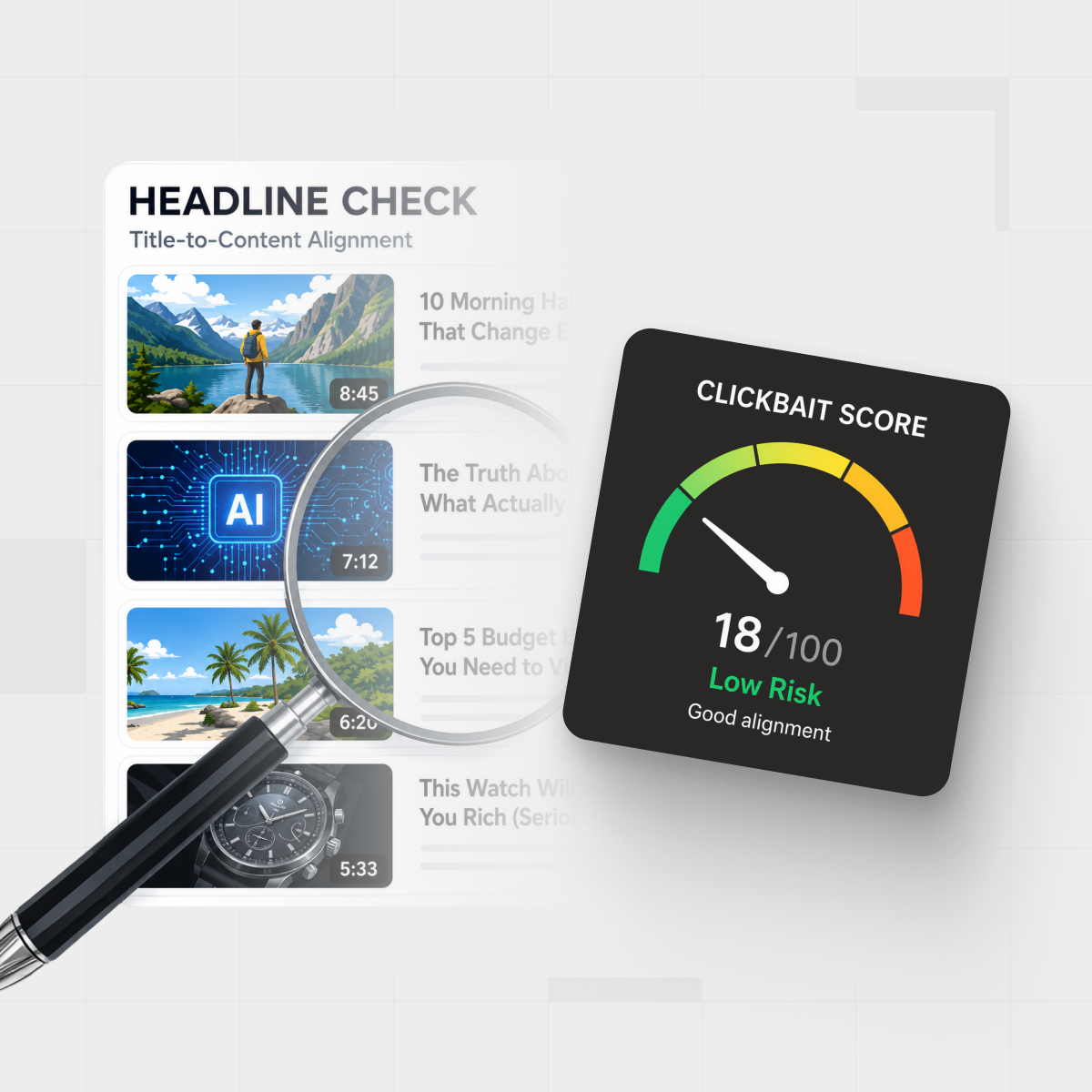
- See a clickbait score that shows how well the title and thumbnail match the content.
- Get key points grouped by section, so your “table of contents” feels more like a report.
- Use AI chat to ask follow-up questions about the video, without rewatching it.
The end goal isn’t to replace watching. It’s to watch fewer bad videos and spend more time with the ones that actually earn your focus.
Where this extension falls short (and how IsThisClickbait helps)
The YouTube Summary with ChatGPT Chrome extension is handy, but it has some common friction points:

Pairing raw YouTube browsing with structured AI summaries and clickbait checks helps you decide what’s worth a full watch.
- Title honesty: it usually doesn’t check whether the title and thumbnail exaggerate the content.
- Repetitive summaries: generic prompts can gloss over missing sections or weak arguments.
- No scoring: you don’t get a quick signal of “worth watching” vs. “skip.”
- Hard to share: dropping a raw ChatGPT summary in Slack or Notion often lacks structure and timestamps.
That’s the gap IsThisClickbait is built for. It sits next to YouTube (Chrome, Edge, Firefox, and more) and turns any video into:
- A clickbait score with an explanation of how the title and thumbnail compare to the content.
- A clean summary, key points, and must-watch moments with timestamps.
- A Q&A chat where you can ask questions about the video without rewatching it.
You can still use ChatGPT-based extensions for quick drafts, but when you need something shareable for a team, class, or client, a structured analyzer like IsThisClickbait gives you more signal with less copying and pasting.
Curious what this looks like on your own watch history? Try it on the last “must-watch” video you didn’t finish and see how the summary compares to what you actually saw.
FAQ: YouTube summaries, ChatGPT, and browser extensions
1. Is the YouTube Summary with ChatGPT Chrome extension safe to use?
In general, established Chrome extensions are reviewed by Google and show permissions clearly on their store page. Still, always check who publishes the extension, how many users it has, and what data it can access. When in doubt, read a few recent reviews and keep your browser up to date.
2. Does it work on all YouTube videos?
Any summary tool depends on the transcript. If a video has no transcript, has heavy music, or uses a language that automatic captions struggle with, the output may be patchy. For research or study, it helps to stick with channels that publish clear speech and well-edited audio.
3. What’s the best prompt for the YouTube Summary with ChatGPT Chrome extension?
There’s no single “best” prompt. Instead, match the prompt to the job:
- For tutorials: ask for step-by-step instructions, commands, and pitfalls.
- For lectures: ask for definitions, theorems, and exam-style questions.
- For business content: ask for opportunities, risks, and decisions.
Start from the examples above, then tweak wording over a week of use. Screenshots or short notes on what worked well help you build your own personal prompt library.
4. How does this compare to IsThisClickbait?
The YouTube Summary with ChatGPT extension is great when you want:
- A quick free-form summary
- Fast access inside ChatGPT
- Simple copy-paste workflows
IsThisClickbait focuses on:
- Clickbait scoring and title–content honesty checks
- Structured outlines, key points, and timestamps
- Searchable, shareable breakdowns for students, teams, and researchers
Many heavy YouTube users end up using both: a quick ChatGPT summary for brainstorming, and IsThisClickbait when they need a reliable, scannable brief of an important video.
5. Can I use this workflow outside Chrome?
Yes. You can copy any YouTube transcript and paste it into ChatGPT with the same prompts described here. Meanwhile, IsThisClickbait works on major browsers including Chrome, Edge, Brave, Opera, Arc, and Firefox, so you’re not locked into a single setup.
Next steps: make every video scannable
You don’t need to quit long-form video. You just need a way to treat it like text: skim first, then choose what deserves a full watch.
- Install a YouTube summary extension and pin it in your browser.
- Save 2–3 prompts from this guide that match how you work.
- Test the workflow on your next lecture, webinar, or product review.
- Run a few of your “most-clickbaity” videos through IsThisClickbait to see which titles actually keep their promises.
Over a week, you’ll start to feel the difference: less guessing from thumbnails, more confident “watch, skim, or skip” decisions, and a YouTube queue that works for you instead of the other way around.
Ready to stress-test your watch later list? Analyze your next YouTube video and see exactly what’s inside before you press play.