


If you’ve ever paused a YouTube lecture or podcast, thought “where did they say that?” and scrubbed around the timeline, this guide is for you. A quick transcript lets you skim the words like an article instead of guessing with the playhead.
If you’ve ever googled how to get transcript of a YouTube video, you’re really just looking for YouTube’s built‑in transcript panel. The path to that panel is slightly hidden, and it looks different on desktop vs. mobile. Sometimes the button even vanishes, making it look like YouTube removed transcripts altogether.
In this guide, you’ll see the exact clicks to open, read, copy, and search YouTube transcripts on desktop and mobile, plus what to try when the Show transcript button is missing. We’ll also show how a tool like IsThisClickbait can pull the transcript and summarize the video for you when YouTube’s built‑in panel isn’t enough.
They’re also a big win for accessibility and learning. Accessibility guidelines from Brandeis University note that captions and transcripts can boost focus and comprehension for many learners, not just those who are deaf or hard of hearing (audio and video accessibility).
Transcripts let you skim long videos like an article instead of blindly scrubbing along the timeline.
TL;DR: Quick start
- Desktop (web): Open the video on youtube.com → click More under the description → scroll to the bottom of the description drawer → click Show transcript (or use the three-dot More actions menu under the title as a fallback).
- Mobile app (iOS & Android): Tap the video title or down arrow to expand the description → scroll to the bottom → tap Show transcript.
- If you don’t see the button, check that captions exist and that your layout or a browser extension isn’t hiding the panel.
- To save the text, open the transcript, turn timestamps off, select all, and paste into your notes app or document.
Quick answer: where the transcript lives now
YouTube now usually puts the transcript in the video description: on desktop, expand the description and use the Show transcript row at the bottom; on mobile, expand the description in the YouTube app and scroll to the same Show transcript option. If your layout looks different, scroll a bit further or check the three-dot More actions menu under the title, the transcript option is almost always in one of those two places. You can also check the official YouTube Help instructions for viewing transcripts.
How to see the transcript on YouTube (desktop step-by-step)
Step-by-step on desktop browsers
These steps work in modern desktop browsers like Chrome, Edge, Firefox, and Brave:
- Open the video on youtube.com in your browser.
- Scroll down below the video until you can see the description box.
- If the description is collapsed, click the More button to expand it fully.
- Scroll to the very bottom of the description drawer and click the Show transcript row.
- The transcript panel will appear on the right side of the video or underneath it, with timestamped lines of text.
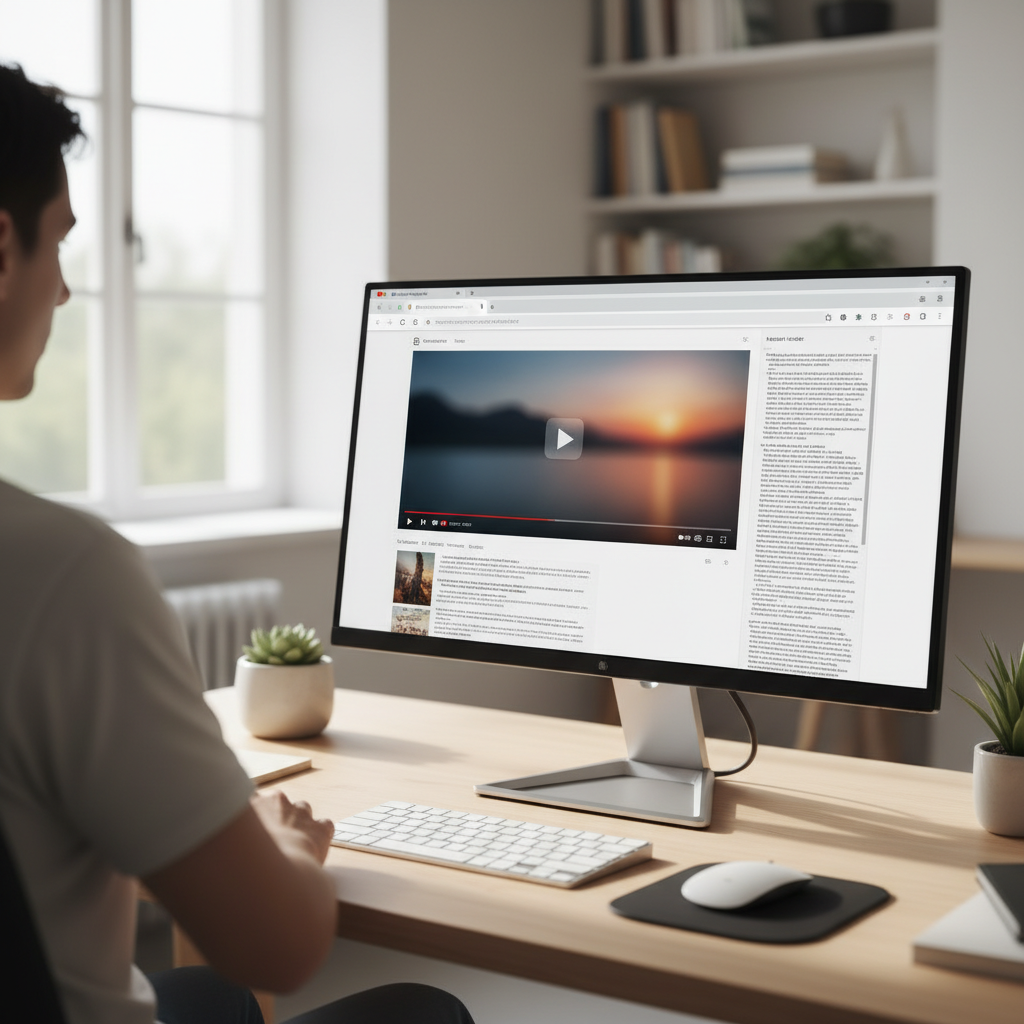
On desktop, the transcript usually opens in a side panel next to the main video player.
If you don’t see a Show transcript row in the description, look under the three-dot More actions menu just below the video title—some layouts still show the transcript option in that menu instead.
As the video plays, the current line is highlighted, and clicking any timestamp jumps you straight to that moment.
Searching and toggling timestamps
Once the panel is open, you can tidy and search the transcript:
- Turn timestamps off: click the three dots in the top-right of the transcript panel and choose Toggle timestamps. This leaves you with clean text if you plan to copy it.
- Search within the transcript: many layouts now include a small search field at the top of the transcript. If you don’t see one, press Ctrl + F (or Cmd + F on Mac) and search the page for a keyword.
- Change language: if the creator added subtitles in multiple languages, a dropdown at the top of the panel lets you switch before copying.
Desktop limitations
The desktop transcript is great for skimming, but it’s still basic:
- No native “download” button: YouTube doesn’t let you export the transcript directly; you have to copy and paste.
- No speaker labels: interviews and podcasts show as one long block of text.
- Formatting is minimal: line breaks follow caption timing, not sentence structure, so you may need to reformat for notes.
How to view transcript on YouTube mobile app (iOS & Android)
On mobile, the transcript lives in the description drawer rather than a three-dot menu, which is why people often miss it.
Steps in the YouTube mobile app
- Open the video in the official YouTube app on your phone or tablet.
- Tap the title or the small down arrow under the video to expand the description.
- Scroll all the way to the bottom of that drawer.
- Tap Show transcript.
- The transcript appears underneath the video with timestamp “chips” you can tap to jump to that moment.
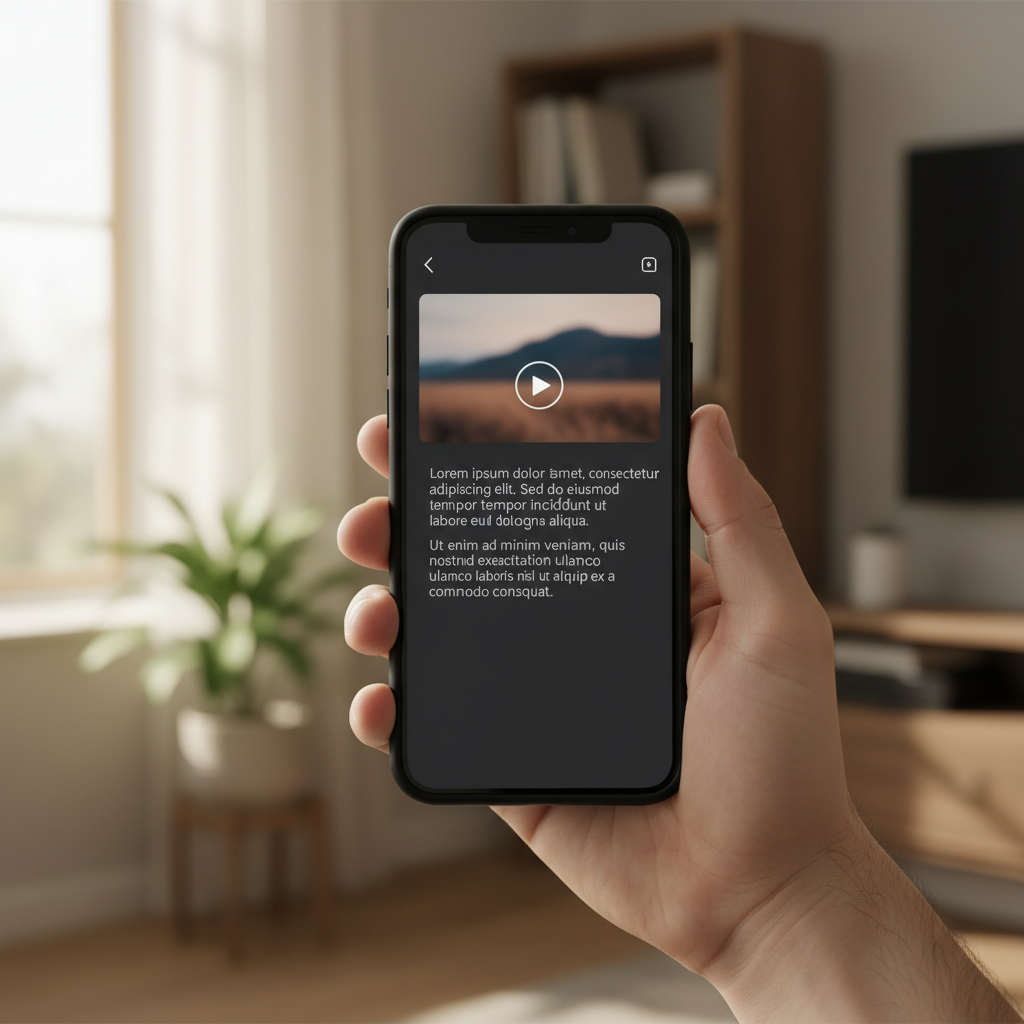
In the mobile app, the transcript sits below the video inside the expanded description drawer.
The mobile transcript is great when you want to follow along silently, though copying more than a few lines can be fiddly.
Mobile tip: the transcript panel is much more reliable in the desktop site and official apps. If you’re on m.youtube.com or an embedded player and don’t see it, open the video in the YouTube app or request the desktop site in your browser, then use the same Show transcript controls.
What to do when “Show transcript” is missing
Sometimes you follow every step and the transcript option still isn’t there. Here are the most common reasons and fixes.
1. The video has no captions yet
YouTube only shows a transcript when the video has a caption track—either uploaded by the creator or auto-generated. If there’s no “CC” option yet (especially on new uploads), there usually won’t be a transcript.
2. You’re on the wrong interface
- Mobile browser instead of app: mobile web often hides the transcript, so open the video in the YouTube app or request the desktop site.
- Embedded players: if the video is embedded on another site, click the YouTube logo to open the full watch page, where the transcript drawer lives.
3. Account, region, or content quirks
A few other situations can hide transcripts:
- Restricted content: member-only, auto-dubbed, or region-limited videos may not expose transcripts even when captions exist.
- Special accounts or live replays: supervised profiles and some live streams take longer to generate transcripts or never show them at all.
4. Browser extensions or custom YouTube apps
Ad blockers and “declutter YouTube” extensions can break or hide the transcript drawer. If you suddenly lose transcripts, try this:
- Temporarily disable your YouTube-related extensions and refresh.
- Open the same video in an incognito/private window without extensions.
- If nothing changes, try another browser or device.
5. When you still need the text anyway
If you’re dealing with a long lecture, research breakdown, or product walkthrough and the transcript panel still won’t appear, a helper like IsThisClickbait can fetch the transcript (when captions exist) and show a summary, key points, and timestamps alongside the video.
That way you can jump straight to what was actually said instead of wrestling with layouts or copying everything by hand.
How to copy or save a YouTube transcript
People often search “how to get transcript of youtube video” when they really mean “how do I save this as text for later?” YouTube doesn’t give you a download button, but the manual method is quick once you know the trick.
Fast copy-paste method on desktop
- Open the video on desktop and click Show transcript using the steps above.
- Click the three dots at the top of the transcript panel and choose Toggle timestamps to remove the timecodes.
- Click inside the transcript, press Ctrl + A (or Cmd + A on Mac) to select all, then Ctrl + C to copy.
- Paste into your notes app, Google Docs, or Word and save.
Cleaning up the transcript for notes
Once the text is in your editor, you can:
- Join short caption lines into full sentences and paragraphs.
- Add headings for each section of the video (Intro, Key idea 1, Case study, etc.).
- Highlight quotes or stats you want to reference later.
If that sounds like too much manual work, IsThisClickbait can turn transcripts into bullet-point summaries and must-watch timestamps.
FAQs about YouTube transcripts
Why do some videos have no transcript at all?
Usually because there are no captions. YouTube can’t build a transcript without a caption track, so if auto-captions are disabled or not supported, you won’t see the transcript button.
Can I get a transcript for private or unlisted videos?
If you can watch the video on YouTube and it has captions, you can typically open its transcript using the same Show transcript controls. For truly private uploads you don’t have access to, there’s no legitimate way to pull a transcript.
Can I use transcripts for studying or research?
Yes—many universities recommend using YouTube transcripts to make lecture notes and accessible course materials. In one national study of more than 2,000 students, roughly half said they downloaded transcripts mainly as study guides, not just as an accommodation (captions and transcripts study). Just remember that auto-captions can contain errors, especially in technical subjects or noisy audio, so it’s wise to cross-check anything critical.
Is there a way to speed-read transcripts instead of watching full videos?
IsThisClickbait is built for this: open the video with the browser extension, skim the summary and clickbait score, then jump straight to the timestamps that match your keywords instead of reading every line.
Next step: turn transcripts into summaries and decisions
Knowing how to view transcript on YouTube is the first step; the second is turning those words into clear notes and quick yes/no decisions about whether a video is worth your time.
Once you have a transcript, you can turn long videos into skimmable notes, summaries, and clear decisions.
That’s where IsThisClickbait helps. In a side panel next to YouTube, it pulls the transcript, checks how honest the title and thumbnail are, and hands you concise summaries, key points, and must-watch moments so you can skim instead of watching blind.
Across all accounts so far, that workflow has already saved viewers over 250 hours of watch time and helped creators review videos roughly 3× faster than watching everything from start to finish.
The Scroll–Skim–Decide workflow
Here’s a simple way to combine YouTube transcripts with IsThisClickbait:
- Scroll: open the transcript or the IsThisClickbait side panel.
- Skim: glance through the summary, key points, and key timestamps.
- Decide: jump to the moments you need, or skip the video if it’s not worth your time.
If you’re ready to make YouTube as scannable as text, you can start analyzing your next video or compare plans on our pricing page.