


TL;DR
- IsThisClickbait is the best all‑round choice if you want summaries plus a clickbait score and Q&A in one panel, on Chrome, Edge, and Firefox.
- Glasp YouTube Summary is a great free option with export to Notion, Obsidian, and Roam, and strong browser coverage.
- Glarity is ideal if you like open‑source tools that summarize YouTube and almost any web page in one place.
- Eightify and NoteGPT shine on Chrome and Edge for polished AI notes and long‑video support, but they’re less friendly to Firefox users.
If you watch a “quick” 20‑minute video that somehow eats an hour, you’re not alone. A lot of us now lean on AI to scan the transcript, pull the key points, and flag whether a video is honest or just hype before we commit. The catch: there are dozens of browser add‑ons promising to help, and many people have already burned time on a youtube summary extension that feels buggy, noisy, or locked behind subscriptions, as Reddit discussion threads often complain.
This guide walks through the main tools on Chrome, Microsoft Edge, and Firefox in 2026 so you can pick something that fits your browser and workflow instead of installing every option in the store. We’ll cover what matters (transcript handling, accuracy, pricing, export options), compare the main players, and show where IsThisClickbait’s YouTube video summary tool fits in that mix.

A youtube summary extension sits beside the video player in your browser, turning long clips into a quick brief.
“IsThisClickbait turns any long YouTube video into a 5‑minute brief with a clickbait score, so you can decide to watch, skim, or skip in seconds.”
What is a YouTube summary extension?
In simple terms, these add‑ons sit next to YouTube in your browser, grab the video’s transcript or audio, and hand that text to an AI model (ChatGPT, Claude, Gemini, etc.) to turn into a short write‑up.

Most YouTube summary extensions add a side panel next to the video with a concise, AI‑generated overview.
Most work like this:
- You open a YouTube watch page in Chrome, Edge, Brave, Arc, Opera, or Firefox.
- The extension pulls the closed‑caption transcript or runs speech‑to‑text on the audio if captions don’t exist.
- AI condenses that into:
- a bullet‑point summary,
- key ideas with timestamps,
- and sometimes a chat box so you can ask follow‑up questions.
Some tools stop there. Others, like IsThisClickbait’s 5‑minute brief workflow, also compare the title and thumbnail against what’s actually said, give you a clickbait score, and highlight which sections are worth your time.
How to pick the right extension for Chrome, Edge, and Firefox
Before installing yet another tool, run this simple Browser–Transcript–Export Check for 2026:
- Browser: Confirm it has official support for the browser you actually use (Chrome, Edge, Firefox, etc.), not just “Chrome only” fine print; tools like IsThisClickbait, Glasp, and Glarity cover multiple browsers (see our YouTube clickbait article for details).
- Transcript: Make sure it can handle long lectures and podcasts, exposes the full transcript, and keeps key numbers and names accurate for your kind of content (guides like the Notta transcript tutorial show what to look for).
- Export: Check where the summary and transcript can go next—into Notion/Obsidian, shared briefs, or your team’s docs—and what you’ll pay once you hit any free‑tier limits (see the IsThisClickbait pricing page for an example of usage‑based plans).
Then layer on privacy and honesty: avoid cluttered interfaces that cover half the screen, read each extension’s privacy section on the Chrome Web Store or Firefox Add‑ons, and decide whether you just want a summary or also care about hype detection. If you spend your days in webinars and “guru” breakdowns, something like IsThisClickbait for pros & teams, which flags hype against the transcript, can matter more than shaving a few seconds off load time.
“‘Free forever’ YouTube summary extensions can still cost you time if they’re slow, inaccurate, or don’t export cleanly into the tools where you actually work.”
Top YouTube summary extensions in 2026 (at a glance)
Here’s a quick snapshot of the most widely discussed tools this year, focused on YouTube itself rather than generic “summarize any tab” sidebars. Rankings are based on current feature sets, cross‑browser support, and how they’re used in real learning and research workflows (DigestAI comparison guide is one reference point).

Teams often compare several YouTube summary extension tools side by side to find the best fit for their workflow.
Tool breakdowns: IsThisClickbait, Glasp, Glarity, Eightify, NoteGPT
IsThisClickbait (Chrome, Edge, Firefox): summary + clickbait detection
IsThisClickbait is our YouTube video analyzer for people who watch a lot of educational content and want to know before they invest time whether a video keeps its promise. Open a video in Chrome, Edge, Brave, Opera, Arc, or Firefox, tap the IsThisClickbait button, and a side panel appears with:
- a plain‑language summary of the video,
- structured key points with timestamps,
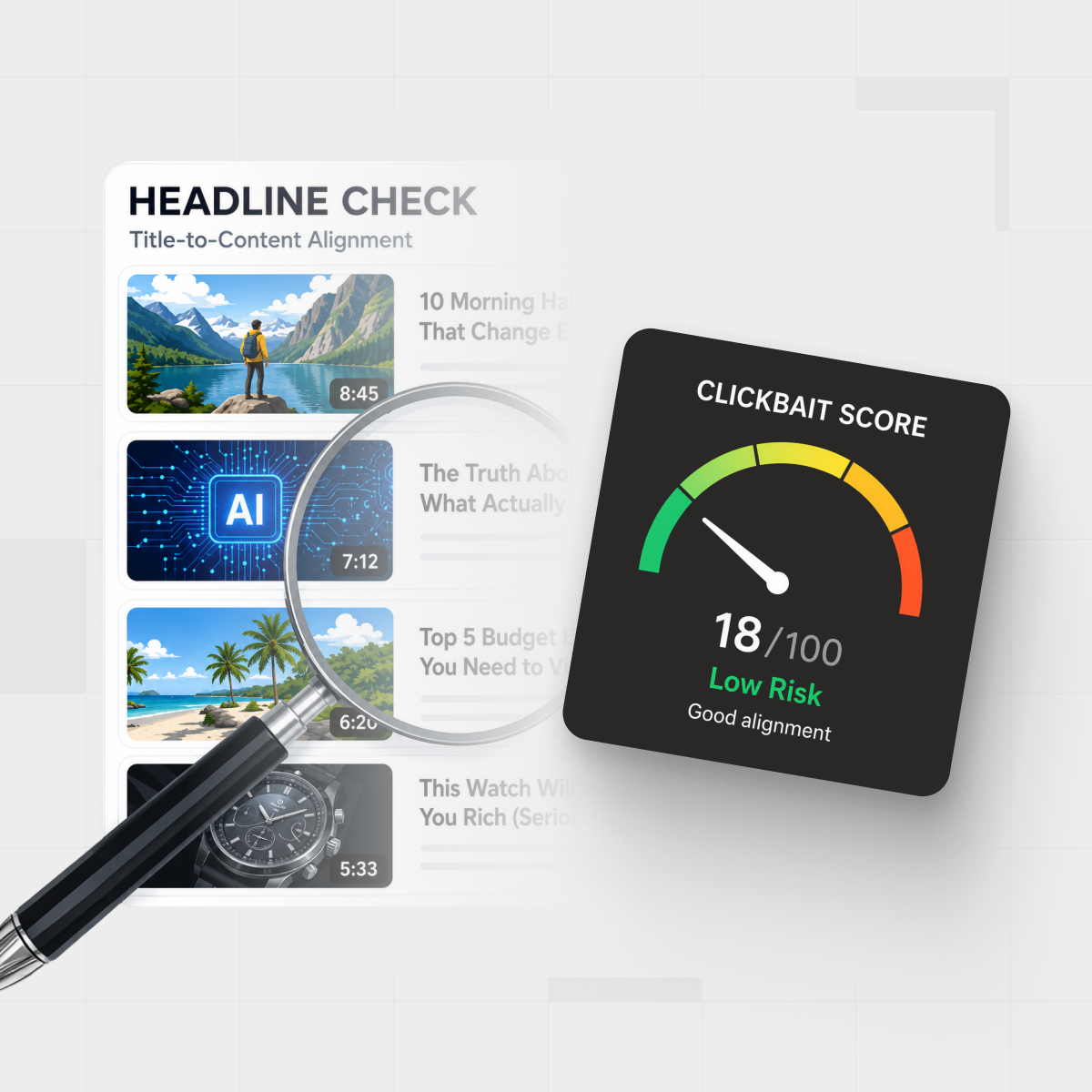
- a clickbait score that compares the title and thumbnail against what’s actually said,
- a chat box so you can ask questions about the content.
Inside a 5‑minute brief
- Problem: what the video claims it will solve.
- Promise: how bold the title/thumbnail is versus the actual material.
- Key claims: the main arguments, numbers, or steps pulled from the transcript.
- Timestamps: jump points to the most useful sections.
- Verdict: a clickbait score and short note on whether the video delivers.
Students and teams use this as a triage system: skim the brief for a lecture or webinar, jump to the two or three sections that matter, and share timestamps instead of a 90‑minute link. The same account works across browsers, so your history and scores stay in sync on every machine.
Pricing is account‑based rather than browser‑based: the extension is free to install on as many Chromium and Firefox browsers as you want, and usage is tied to your plan on isthisclickbait.com. That makes it a strong fit if you watch YouTube in multiple browsers or devices and want the same summaries, scores, and history everywhere.
Glasp YouTube Summary with ChatGPT & Claude
Glasp’s YouTube Summary extension adds a transcript pane and AI summary beside the video, powered by models like ChatGPT, Claude, Gemini, and Mistral, with native extensions for Chrome, Edge, Safari, Brave, Opera, and Firefox. It’s best if you want a mostly free, cross‑browser tool that turns videos into highlights you can reuse.
Glasp’s ecosystem is the draw: you can highlight transcript lines, attach notes, and export everything to Notion, Roam, Obsidian, and other tools in formats like Markdown and CSV (Glasp feature overview has specifics). There’s also a web interface where you can paste a YouTube URL and get a summary without installing anything, which is handy on locked‑down work machines.
Glarity: open‑source YouTube + web summarizer
Glarity is an open‑source summary and translation extension for “YouTube, Google, Twitter, and any webpage,” with official buttons for Chrome, Edge, Safari, Firefox, and Opera. It can summarize YouTube videos, web pages, PDFs, and emails, and when you connect your own keys for models like GPT‑4o, Claude 3.5, or Gemini Pro, you keep more control over which AI you pay for and how it’s used.
If you’re technical, that bring‑your‑own‑key model and active GitHub project are appealing; you get one panel that works across many sites, not just YouTube. Less technical users may find setup a bit more involved, but once it’s running, it’s a versatile choice for people who read and watch a lot across the web.
Eightify & NoteGPT: Chrome‑first power tools
In independent roundups, Eightify often shows up as the “most polished” YouTube summary Chrome extension, praised for clean summaries of tech explainers and business videos — but also called out for paywalls once you move past light usage. It runs as a standard Chrome extension and usually works on Edge too, but there’s no dedicated Firefox add‑on listed in major extension directories yet.
NoteGPT takes a more study‑oriented angle: it turns transcripts into structured notes, mind maps, slide decks, and podcasts, and can handle videos without subtitles using its own speech‑to‑text up to around two hours per video. If you live inside Chrome or Edge, don’t mind subscriptions, and care more about downstream formats (slides, mind maps) than about clickbait scores, Eightify and NoteGPT are strong competitors, while Firefox‑only users will have a better time with IsThisClickbait, Glasp, or Glarity.
Which YouTube summary extension is best for you?
Here’s how this shakes out by scenario in 2026:
- If you want to know whether a video is honest before you watch, choose IsThisClickbait because it combines a summary, key points, and a clickbait score that compares the title and thumbnail to the transcript across Chrome, Edge, Brave, Opera, Arc, and Firefox (see the IsThisClickbait overview for more details).
- If you’re a student turning lectures into notes, pair IsThisClickbait or Glasp with your note‑taking tool — IsThisClickbait for fast briefs and timestamps, Glasp if you rely on Notion, Obsidian, or Roam (see IsThisClickbait for students for examples).
- If you want one extension that summarizes YouTube and web articles, look at Glarity or Glasp because both can summarize web pages and PDFs as well as videos, with Glarity leaning harder into translation and multi‑model chat.
- If you mostly use Chrome or Edge and care about slides and mind maps, choose NoteGPT for its mind‑map and slide‑generation features on top of summaries and transcripts (NoteGPT Chrome page).
- If you want something free and simple you can keep running all day, start with Glasp or Glarity and upgrade to an IsThisClickbait plan once you feel how much time summaries and clickbait detection are saving you.
Example workflow. A grad student following 90‑minute lecture uploads can run each video through IsThisClickbait, scan the 5‑minute brief, and then jump straight to the 20–30 minutes that matter for an assignment instead of watching the entire thing. Over a week of courses, that shift from “watch everything” to “targeted sections” can turn several hours of background YouTube into one focused block of study.

A YouTube summary extension can turn long lectures into targeted timestamps so you only watch the sections that matter.
If you’re not sure, take the same 60‑minute lecture or podcast episode and run it through two or three of these tools side by side. Look at which one captures the arguments and numbers you care about most—and which one actually changes how you watch.
FAQ: YouTube summary extensions in 2026
Do these extensions work on every YouTube video?
Not on every video. Most tools rely on YouTube’s closed captions or auto‑generated transcripts, so if captions are missing, restricted, or behind a membership paywall, the extension may struggle or fall back to audio transcription if it supports that (see this Notta transcript guide for examples).
Are YouTube summary extensions safe to use?
Reputable extensions usually process the video transcript, not your personal data, and many state that they don’t sell browsing data to third parties (you can see this in the “Privacy” tab on listings like the NoteGPT Chrome page). Always read the Chrome Web Store / Firefox Add‑ons privacy section, keep extensions updated, and remove tools that trigger browser warnings or feel untrustworthy.
Why not just use YouTube’s built-in “Ask” / AI summary?
YouTube’s Gemini‑powered Ask feature now offers AI explanations and summaries on some videos, especially for logged‑in and Premium users. Many viewers still prefer browser extensions because they work across more videos and languages, offer better export options for notes, and keep your research outside of YouTube’s interface (user feedback threads often mention this).
Will using a summary extension replace actually watching videos?
In practice, summaries change which videos you watch and how you watch them. Many people skim the brief first, then jump straight to the sections that matter instead of letting autoplay run in the background all afternoon - which is the workflow behind our 5‑minute brief approach.
Next step: Test one on your Watch Later queue
A comparison table is helpful, but the real test is your own Watch Later list. Pick three long videos you’ve been putting off—one tutorial, one lecture, one podcast—run them through one or two of the tools here, and notice how quickly you can decide what to do with each video, whether the summary matches what the title promised, and how easy it is to turn that output into notes or decisions.
If you want a clear summary, timestamps, and an honesty check beside any YouTube video in Chrome, Edge, or Firefox, add the IsThisClickbait browser extension and let it read your next few videos for you. Your future self - the one with a shorter watch history and better notes — will be grateful.