


Most people open YouTube for one video and lose an hour without noticing.
TL;DR:
- Average users spend around 45–50 minutes a day on YouTube, and it adds up fast. YouTube usage stats from Sprout Social.
- Use distraction-free YouTube extensions to hide home feeds, recommendations, Shorts, and comments.
- Set site blockers or schedules so YouTube is only open during defined windows.
- Follow a 3-rule system: open with a purpose, hide the bait, and preview videos with tools like IsThisClickbait before you commit to watching.
If you’ve ever opened YouTube “for one quick video” and woken up 90 minutes later, you’re in good company. With billions of users and well over a billion hours watched every day, YouTube is designed to keep you around. YouTube overview on
Instead, you can set up your browser so YouTube works for you: extensions that strip away the rabbit holes, blockers that keep it off during work, and a dead-simple 3-rule system you can follow even when you’re tired. That’s what we’ll walk through here, with practical settings you can copy in under 20 minutes.
Why YouTube quietly eats your day
YouTube isn’t just “video hosting.” It’s a recommendation machine that learns exactly which thumbnails, Shorts, and titles pull you in. The average user now spends roughly 48–49 minutes per day on the platform, and that trend is still climbing. Recent YouTube usage statistics from Sprout Social. That’s before you add background watching, autoplay, and “just one more” video at midnight.
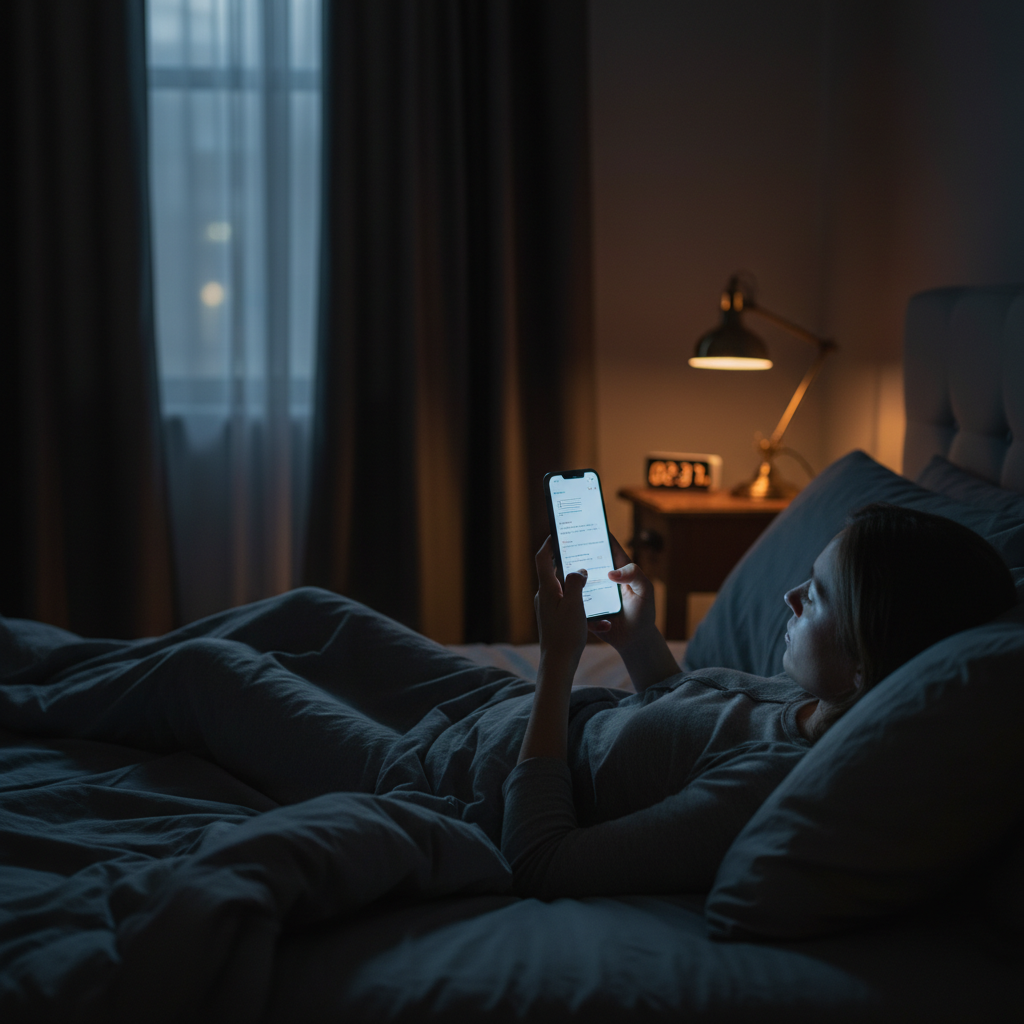
YouTube’s endless feed makes late-night “just one more video” sessions hard to resist.
Three things make it so sticky:
- The home feed and sidebar: endless recommendations tuned to your watch history.
- Thumbnails and titles: bold promises (“You’re doing this WRONG…”) that trigger curiosity and fear of missing out.
- Autoplay and Shorts: you don’t even have to click for the next hit of novelty.
Variable rewards, autoplay, and micro-traps
None of this is evil on its own. The problem is that YouTube is tuned for variable rewards: every click or swipe might surface an amazing video or a boring one, and your brain learns to keep pulling the lever “just in case.”
Autoplay and Shorts remove even the tiny pause where you might ask, “Do I really want this right now?” The next video starts on its own, and the Shorts rail is always one swipe away.
Two very common patterns:
- The coding detour: You open YouTube for a specific 8-minute debugging tutorial. When it ends, autoplay queues up “10 junior dev mistakes you’re still making” while the sidebar flashes a drama-filled “Why I quit coding” vlog. Ten minutes later you’re still watching opinions, not fixing your bug.
- The study swipe: You tap a recommended exam-review lecture on your phone. While it buffers, you swipe down once and Shorts takes over with funny clips and hot takes. By the time you look up, the exam video is still paused at 0:00.
Each of these micro-traps only steals “a few minutes,” but across days they quietly eat the hours you meant for focused work or rest. That’s where extensions, blockers, and a few simple rules come in.
Step 0: Decide what YouTube is for in your life
Before we talk tools, get clear on this: what do you actually want YouTube for? Be specific:
- “20 minutes of tutorial videos when I’m stuck on code.”
- “Lectures and exam reviews for my physics course.”
- “A couple of long-form essays or interviews on weekends.”
Write down your answer. That’s your “allowed use.” Everything else—doomscrolling Shorts, random drama videos, algorithm roulette—is extra. When we start building rules and blocker settings, that written intent becomes your north star.
If you use YouTube heavily for learning, you may also want to bookmark the IsThisClickbait blog and explore IsThisClickbait for students so you can turn lectures into notes instead of fighting the algorithm every time you open a new tab.
Sample YouTube rules you can copy
Here are three simple rule sets you can paste into your notes app and tweak.
Student YouTube rules
- Only open YouTube for: lectures, exam reviews, and specific “how to solve <topic>” tutorials.
- Use it between 4–6 p.m. on weekdays and 10 a.m.–12 p.m. on weekends; blocked at all other times.
- No home feed browsing: always search directly for the video or open from a course link.
- For any video longer than 15 minutes, preview it with a summary tool first and jump to the right timestamp.
Developer YouTube rules
- Only open YouTube from your IDE/notes when you hit a specific bug or concept.
- Block YouTube during core coding hours (for example, 9–12 and 1–4); allow one 20–30 minute window after lunch.
- Watch at most two videos per problem: if the second one does not help, switch back to docs or written tutorials.
- Never watch “dev drama” or opinion pieces during work; save them to a separate playlist for weekends.
Creator YouTube rules
- Separate “create” and “research” sessions. No watching recommendations while you are supposed to be scripting or editing.
- During research, open only channels and videos you have pre-approved or that you have previewed via summaries.
- Cap “competitive research” to 30–45 minutes per day using a site blocker timer.
- When checking your own videos, use tools like IsThisClickbait to compare titles and transcripts instead of rewatching full uploads.
Rule #1: Strip away the bait with distraction-free extensions
First rule: if you don’t see the bait, you don’t click the bait. There are mature browser extensions whose only job is to hide YouTube’s most distracting surfaces—home feed, “Up next” sidebar, comments, Shorts, and even the end-screen grid. Unhook and DF Tube (Distraction Free for YouTube) are two popular options that do exactly this.
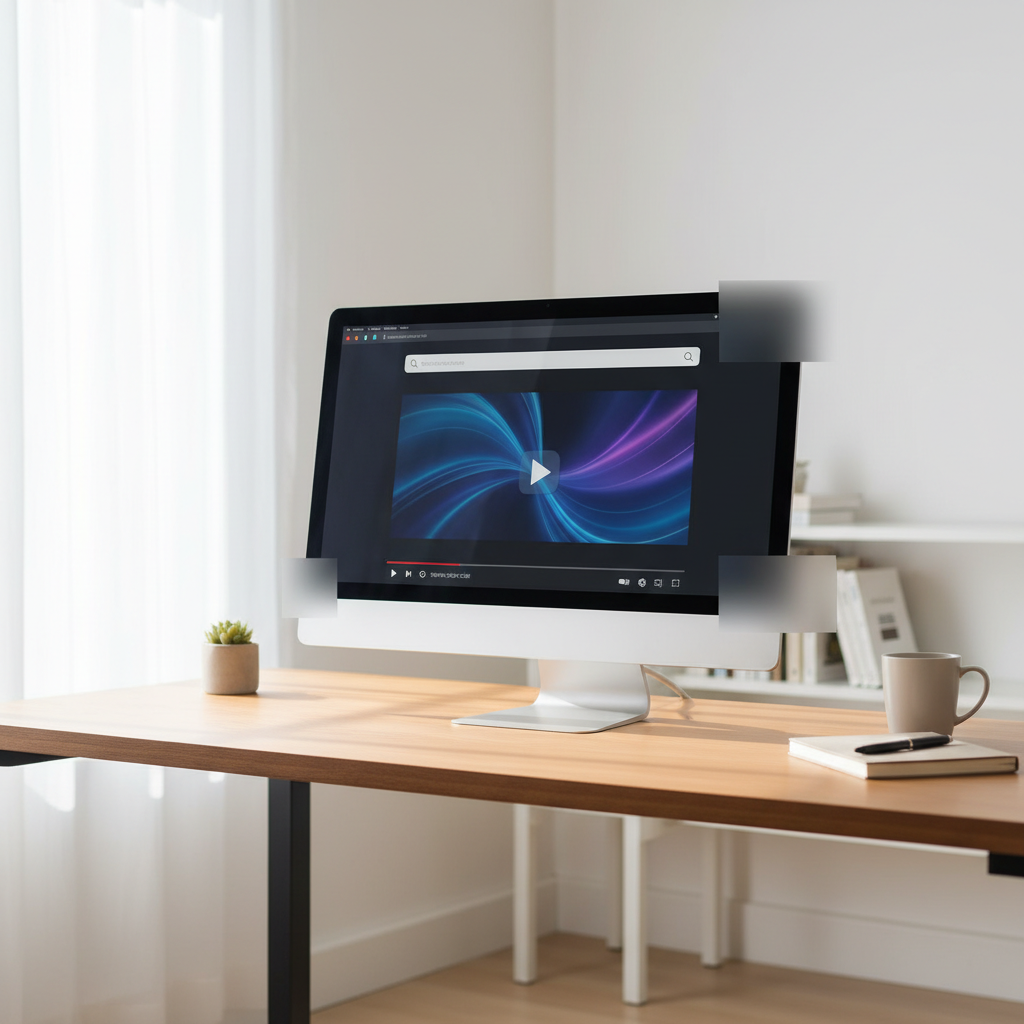
Distraction-free extensions turn YouTube into a simple search-and-watch tool instead of a recommendation feed.
If you don’t see the bait, you don’t click the bait.
Here’s a setup many people find surprisingly calming:
- Hide the home page entirely. When you go to youtube.com, see either a blank page or just the search bar.
- Hide the right-hand “Up next” sidebar. One video at a time, nothing whispering “watch me next.”
- Hide Shorts, comments, and end-screen suggestions. Fewer side quests, fewer arguments, more focus.
You can still search for any video you want. You just won’t have a wall of personalized temptation every time you open the site. Pair this with a good ad- and tracker-blocking extension (for example, uBlock Origin or Ghostery) to reduce clutter and tracking even further.
If you prefer not to install multiple tools, you can start with a single distraction-free YouTube extension, then add more only if you need them. The goal is simple: when you open YouTube for a specific tutorial or lecture, nothing else should be screaming for attention.
Rule #2: Put YouTube on rails with blockers and schedules
Second rule: YouTube should be available on your schedule, not whenever a bored part of your brain reaches for a new tab. That’s where site blockers shine. Tools like StayFocusd (Chrome), LeechBlock NG (Firefox), BlockSite, Freedom, and AppBlock let you block YouTube on a timer, set daily time limits, or lock it behind a password during deep work hours.
YouTube should be available on your schedule, not whenever a bored part of your brain opens a new tab.
Try this “rails, not walls” setup:
- Workdays: Block youtube.com entirely from, say, 9–12 and 1–5. Allow a 20–30 minute window at lunch if you truly want it.
- Study mode: Create a rule that only allows specific URLs (course channels, lecture playlists) and blocks everything else.
- Night-time guardrail: After a certain hour (for many people, 10–11 p.m.), block YouTube or cap it at 10–15 minutes.
Most blockers also show you basic stats about how often you try to visit a blocked site. That gentle friction—“You’ve hit your YouTube limit for today”—is usually enough to break the automatic tab-opening habit.
If you already rely on YouTube summaries or transcripts, add IsThisClickbait to your “allowed” list so you can still preview and analyze videos even while the main site is locked down.
Rule #3: Preview before you press play (the “honest video” rule)
Third rule: no blind watching. Before you give a video 20–40 minutes of your life, get a quick preview of what’s inside and whether it actually matches the title.
Here’s a simple 3-step checkpoint you can run in under a minute:
- State your purpose in one sentence. “I need a fix for this error,” “I want a beginner’s intro to options,” “I’m looking for one workout routine.”
- Check if the video matches the promise. Look at the outline, timestamps, and key points.
- Decide: watch, skim, or skip. If it’s thin, generic, or padded with fluff, move on.
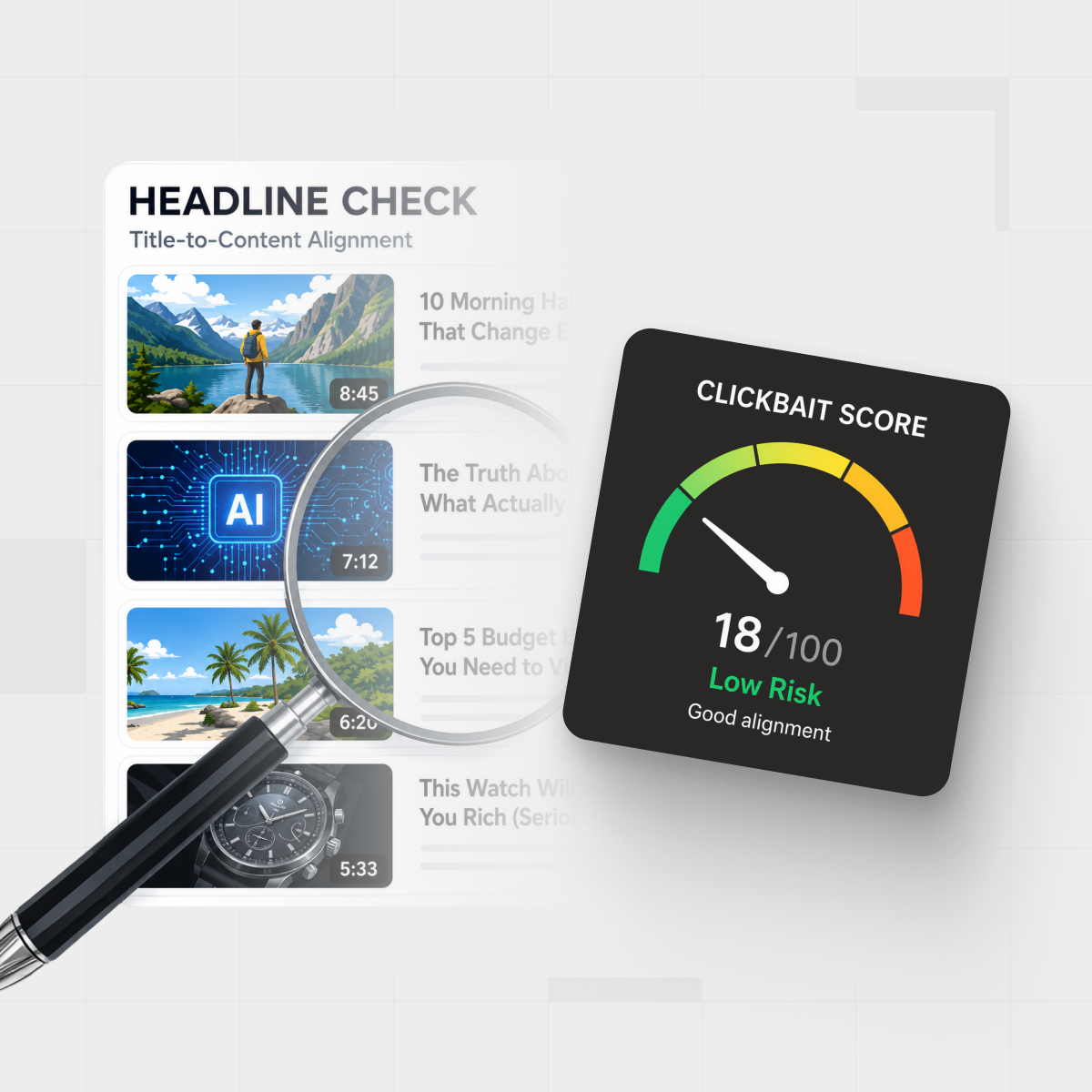
This is exactly where a YouTube analyzer like IsThisClickbait earns its keep. Instead of guessing from a thumbnail, you can:
- See a clean summary of the transcript with key takeaways and timestamps.
- Scan an “honesty vs clickbait” score so you know if the title actually reflects the content.
- Jump straight to the part of the video that answers your question, or decide to skip it altogether.
Over time, this preview habit completely changes your relationship with YouTube. You’re no longer hunting for “something good enough” in a messy feed; you’re scanning structured summaries, choosing intentionally, and then watching only what earns your time. To try this flow, install the browser extension or open the web app and hit the Start Analyzing button on your next video.
If you’re coordinating what to watch across a group or company, you can standardize this preview step with IsThisClickbait for teams, so everyone sees the same summary and honesty check before they share a link.
Putting it together: Your 3-rule checklist
Let’s sum up the whole system in one place. You can paste this into your notes app or stick it on your monitor.
The “Honest YouTube” 3-rule system
- Open with a purpose. No YouTube tab without a clear sentence: “I’m here to learn/do/watch <X>.”
- Hide the bait. Use a distraction-free extension to remove home feed, recommendations, Shorts, comments, and autoplay.
- Preview first. Run the URL through IsThisClickbait or another transcript-based tool, skim the summary and timestamps, then decide to watch, skim, or skip.
With a few guardrails in place, YouTube becomes a focused part of your workflow instead of a time sink.
For example, imagine a computer science student who used to let YouTube run in the background for three or four hours a day. After hiding their home feed, limiting YouTube to two 25-minute windows, and previewing every long lecture with summaries, their screen-time reports could easily show daily YouTube use dropping under an hour while they still finish the same tutorials and exam reviews.
Layer blockers on top of this (Rule #2) so YouTube windows only open during the times you’ve chosen. With that in place, you don’t have to “try harder” every day. The defaults do most of the work for you.
When you’re ready to tighten things further, explore other articles on the IsThisClickbait blog for ideas on using summaries in note-taking apps, building study playlists, and keeping teams aligned on what’s worth watching.
FAQ: Common questions about cutting YouTube time
How do I stop wasting time on YouTube at night?
Nights are rough because your willpower is low. Rely on settings, not self-control. Set your blocker so YouTube is either fully blocked after a certain hour or capped at 10–15 minutes. Move the YouTube app off your phone’s home screen, and when you truly want a specific video, open it via a summary tool first so you can jump right to the useful part instead of browsing.
What if I need YouTube for work or school?
That’s exactly when a “rails, not walls” approach shines. Allow only specific channels, playlists, or individual URLs in your blocker, and hide all recommendations with a distraction-free extension. Then use IsThisClickbait to turn lectures, webinars, and talks into quick summaries you can skim before deciding whether a full watch is worth it.
Should I delete my YouTube account?
For most people, no. YouTube is an amazing library if you strip away the bait and add friction in the right spots. Try the 3-rule setup for two weeks first. If you still feel like it has too strong a pull, then consider more drastic changes, like logging out on all devices or uninstalling the mobile app.
Can extensions and analyzers see my private data?
Always read the permissions and privacy policy before installing any extension. Many distraction-free tools and blockers work entirely in your browser and don’t send browsing data to external servers. In IsThisClickbait’s case, the focus is on analyzing the video URL and transcript so you can see what’s inside without sharing your whole browsing history.
How do I stop wasting time on YouTube on my phone?
On your phone, the main goal is to make “just opening YouTube” less automatic. Use iOS Screen Time or Android Digital Wellbeing to set a daily YouTube limit (for example, 20–30 minutes). Turn off autoplay and most notifications, move the app off your main home screen, and create a simple rule like “I only open YouTube on mobile from a saved link or playlist, never from the home feed.”
How do I stop wasting time on YouTube Shorts specifically?
Treat Shorts as a separate habit. On desktop, hide the Shorts shelf entirely with a distraction-free extension so it never catches your eye. On mobile, avoid swiping up into Shorts from the home tab, and if you do, back out after one clip instead of scrolling. You can also clear or pause your watch history so Shorts stops learning what keeps you hooked, and use app timers to block Shorts-heavy late-night sessions in bed.